January 29

Photoshop Toolbar, Palettes, Menus and More

Click to Watch this Video to learn the basics of Photoshop in Under 25 Minutes


The Toolbar

We’re not going to take a look at every single tool but we are going to look at almost every one of them. While this overview will give you an idea of what each tool does, go find yourself a photo and start playing around with them.
Learn the Basics of Photoshop in Under 25 Minutes

Move Tool (Keyboard: V)

The move tool simply lets you move objects in a given layer around the Photoshop canvas. To use it, click anywhere on the canvas and drag. As you drag, the Photoshop layer will move with your mouse.
Learn the Basics of Photoshop in Under 25 Minutes

Marquee (Keyboard: M)

The marquee lets you select part of the canvas in a specific shape. By default you get a rectangular (or perfect square if you hold down shift while selecting), but you can also select in the shape of an ellipse (or a perfect circle if you hold down shift while selecting).
Learn the Basics of Photoshop in Under 25 Minutes

Lasso (Keyboard: L)

The lasso is a free-form selection tool that lets you drag around the canvas and select anything the lasso’d area covers. Within this tool you also have access to the polygonal lasso, which lets you create a selection by clicking around on the canvas and creating points, and the magnetic lasso, which works the same as the regular lasso but attempts to detect edges for you and automatically snap to them.
Learn the Basics of Photoshop in Under 25 Minutes

Magic Wand (Keyboard: W)1

Clicking an area with the magic wand will tell Photoshop to select the spot you clicked on and anything around it that’s similar. This tool can be used as a crude way to remove backgrounds from photos.
Learn the Basics of Photoshop in Under 25 Minutes

Crop Tool (Keyboard: C)

The crop tool is used to (surprise!) crop your pictures. You can specify the exact size and constrain the crop tool to those proportions, or you can just crop to any size you please.
Learn the Basics of Photoshop in Under 25 Minutes

Eyedropper (Keyboard: I)

The eyedropper tool lets you click on any part of the canvas and sample the color at that exact point. The eyedropper will change your foreground color to whatever color it sampled from the canvas.
Learn the Basics of Photoshop in Under 25 Minutes

Healing Brush (Keyboard: J)

The healing brush lets you sample part of the photograph and use it to paint over another part. Once you’re finished, Photoshop will examine surrounding areas and try to blend what you painted in with the rest of the picture.
Learn the Basics of Photoshop in Under 25 Minutes

Paintbrush and Pencil (Keyboard: B)

The paintbrush is a tool that emulates a paintbrush and the pencil is a tool that emulates a pencil. The paintbrush, however, can be set to many different kinds of brushes. You can paint with standard paintbrush and airbrush styles, or even paint with leaves and other shapes as well.
Learn the Basics of Photoshop in Under 25 Minutes

Clone Stamp (Keyboard: S)

Like the healing brush, the clone stamp lets you sample part of the photograph and use it to paint over another part. With the clone stamp, however, that’s it. Photoshop doesn’t do anything beyond painting one area over a new area.
Learn the Basics of Photoshop in Under 25 Minutes

History Brush (Keyboard: Y)

The history brush lets you paint back in time. Photoshop keeps track of all the moves you make (well, 50 by default) and the history brush lets you paint the past back into the current photo. Say you brightened up the entire photo but you wanted to make a certain area look like it did before you brightened it, you can take the history brush and paint that area to bring back the previous darkness.
Learn the Basics of Photoshop in Under 25 Minutes

Eraser Tool (Keyboard: E)

The erase tool is almost identical to the paintbrush, except it erases instead of paints.
Learn the Basics of Photoshop in Under 25 Minutes

Paint Can and Gradient Tools (Keyboard: G)

The paint can tool lets you fill in a specific area with the current foreground color. The gradient tool will, by default, create a gradient that blends the foreground and background tool (though you can load and create preset gradients as well, some of which use than two colors).
Learn the Basics of Photoshop in Under 25 Minutes

Blur, Sharpen, and Smudge Tools (Keyboard: None)

All three of these tools act like paintbrushes, but each has a different impact on your picture. The blur tool will blur the area where you paint, the sharpen tool will sharpen it, and the smudge tool will smudge the area all around the canvas. The smudge tool is very useful in drawing for creating nicely blended colors or for creating wisps and smoke that you can add to your photos.
Learn the Basics of Photoshop in Under 25 Minutes

Burn, Dodge, and Sponge Tools (Keyboard: O)

The burn, dodge, and sponge tools are paintbrush-like tools that manipulate light and color intensity. The burn tool can make areas in your photo darker. The dodge tool can make them lighter. The sponge tool can saturate or desaturate color in the area you paint with it. These are all very useful tools for photo touch ups.
Learn the Basics of Photoshop in Under 25 Minutes

Pen Tool (Keyboard: P)

The pen tool is used for drawing vector graphics. It can also be used to create paths that can be used for various things that we’ll discuss in a later lesson (although if you watch the video you can see a type path being created).
Learn the Basics of Photoshop in Under 25 Minutes

Type Tool (Keyboard: T)

The type tool lets you type horizontally. Tools hidden beneath the horizontal type tool will let you type vertically and also create horizontal and vertical text masks.
Learn the Basics of Photoshop in Under 25 Minutes

Path Tool (Keyboard: A)

The path tool lets you move any created paths around. It’s like the move tool, but for paths.
Learn the Basics of Photoshop in Under 25 Minutes

Shape Tool (Keyboard: U)

The shape tool lets you create vector rectangles, rounded rectangles, circles, polygons, lines, and custom shapes. These tools are very useful when designing or when creating shape masks for photos.
Learn the Basics of Photoshop in Under 25 Minutes

3D Tools

These are the 3D tools. We’re not going to be dealing with 3D stuff in these lessons so all you really need to know is that these exist. If you’re curious, this video will give you an idea of what these tools can do.
Learn the Basics of Photoshop in Under 25 Minutes

Hand Tool (Keyboard: H)

The hand tool allows you to click and drag around the Photoshop canvas. If the entire canvas currently fits on the screen, this tool won’t do anything. This tool is for easily navigating around when you’re zoomed in, or a picture is simple too big to fit on the screen at 100%.
Learn the Basics of Photoshop in Under 25 Minutes

Zoom Tool (Keyboard: Z)

The zoom tool lets you zoom in and out of the Photoshop canvas by clicking on a given area. By default, the zoom tool only zooms in. To zoom out, hold down the option key and use the zoom tool as you normally would.
Learn the Basics of Photoshop in Under 25 Minutes

Color Selection Tools (Keyboard: D for defaults, X to switch foreground and background colors)

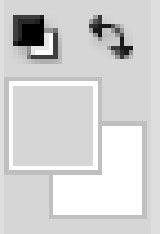
These tools let you manage the colors you’re using. The color on top is the foreground color and the color in back is the background color. The foreground color is what your brushes will use. The background color is what will be used if you delete something from the background or extend it (although now, Photoshop CS5 will give you the option for using your foreground color instead in some circumstances). The two smaller icons up top are shortcut functions. The left one, showing a black square on a white square, will set your foreground and background colors to the defaults (Keyboard: D). The double-headed curved arrow will swap your foreground and background color (Keyboard: X). Clicking on either the foreground or background color will bring up a color picker so you can set them to precisely the color you want.

Palettes

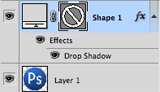
Palettes are the things that you see sitting over on the right side of your screen. They make it easy for you to navigate through your document, add adjustments, switch modes, and other things.
Learn the Basics of Photoshop in Under 25 Minutes

Layers

The layers palette lets you see all the layers in your document. As you start getting to know Photoshop, you’ll find yourself in this palette more than any other. It’ll let you organize and arrange your layers, set blending modes, set visibility and opacity of layers, group and merge layers, and a bunch of other neat things we’ll learn about in future lessons.
Learn the Basics of Photoshop in Under 25 Minutes

Adjustments

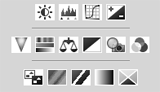
Your adjustments panel is where you can easily create and edit adjustment layers. Adjustment layers are non-destructive image alterations that affect all the layers below them and can easily be turned on and off. Their most common use is for color correction (namely the Levels and Curves adjustments, but there are many different kinds of adjustments you can perform that can dramatically alter the look of your image.
Learn the Basics of Photoshop in Under 25 Minutes

Color Channels

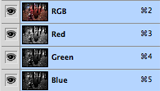
The color channels palette will let you look at the specific colors that make up your picture. If you’re in RGB mode you’ll get red, green, and blue. These color channels will differ if you’re in a different color space (such as CMYK orLAB). When you choose a specific color, you’ll notice you’ll be shown your image in different versions of black and white. This is because each color channel is simply a monochromatic images representing the light in each channel (e.g. the red channel is just a look at the red light in your photo). Switching between these different channels is useful for making color channel-specific touch ups, overall contrast enhancements, and also for converting your photo to black and white in a compelling way. This will be discussed in greater detail in a later lesson about color correction and photo enhancements.
Learn the Basics of Photoshop in Under 25 Minutes

Color Picker

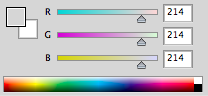
This palette will let you easily alter your foreground and background colors using sliders.
Learn the Basics of Photoshop in Under 25 Minutes

Color Swatches

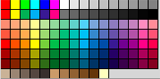
The color swatches palette is a set of pre-defined colors you can quickly choose from. You can load in several other pre-made swatch collections or create your own, too.
Learn the Basics of Photoshop in Under 25 Minutes

History

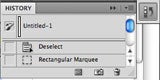
The history palette lets you go back in time to undo any previous alterations. The standard undo command (in the edit menu) will simply toggle between undoing and redoing the latest action performed on your image. The history panel is where you can go back much further (50 actions by default).
Learn the Basics of Photoshop in Under 25 Minutes

Text

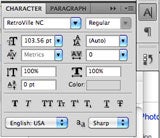
The text palette, and the paragraph palette below it, let you make all sorts of adjustments to any text you create with the type tool. These options are very similar to what you’ll find in a word processing, but you can also specify things like character width and spacing which are more useful in design.

Menus
Learn the Basics of Photoshop in Under 25 Minutes

Most of what you’ll find in Photoshop’s menus can be found using the previously discussed tools. Nonetheless, we’re going to take a quick look at some notable items in each of the menus.

File

File, as usual, handles opening, saving, and closing operations. Towards the end of these lessons we’ll be taking a look at your different saving options (namely Save for Web).

Edit

Edit, as usual, brings you copy, cut, and paste. In Photoshop, it’s also where you transform layers and set your color spaces.

Image

Image brings you canvas and image adjustments, including destructive effects that you’ll also find in your adjustments palette. Options in this menu are designed to affect the image as a whole, although many adjustments are applied to only a single layer.

Layer

Layer lets you do all of the things you can do in the layer palette with a few more options. This menu also lets you create adjustment layers and smart objects (a group of layers treated as a single object).

Select

While the marquee and lasso tools will be your main means of selecting things, the select menu can help you refine that selection or create entirely new selections based on certain criteria (such as color range and luminosity).

Filter

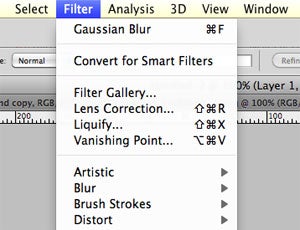
Filter brings you a wealth of built-in (and, if installed, third-party) Photoshop filters that can blur, sharpen, distort, and alter your image (or layers of the image) in many different and unique ways. The best way to get acquainted with these filters is to try them all. That can take a little time, but it’s fun to play around with them and see what they do. We’ll be getting into the specifics in subsequent lessons, but only looking at a few commonly useful filters.

Analysis

Analysis provides you with measurement tools. There will be times when you need them to make accurate alterations to your images. We will not be covering anything in this menu in these basic lessons.

3D

As previously noted, we’re not covering 3D. If you decide to learn more about 3D later, you may want to explore this menu on your own at some point.

View

View provides you with various view options, lets you hide and show line guides you’ve created (see video for an example), and make Photoshop snap (or not snap) to corners, edges, and to the grid on the canvas. Viewing of this invisible grid can also be turned on and off in the View menu.

Window

Window lets you hide and show certain windows and palettes. You can also arrange your Photoshop windows and palettes however you want and save them as a window preset.


That’s all for today! In the next lesson we’ll be learning about color correction, touch-ups, and photo enhancement.

January 29

Tips To Help You Learn Photoshop

Power up your skills as we reveal 30 Photoshop secrets that will increase your productivity overnight.

Photoshop is an amazing bit of software that many designers use on a daily basis. It’s such a flexible bit of kit that you could spend a week learning new features, and still have only scratched the surface of what’s possible.

Once you’ve overcome the beginners’ learning curve, however, there are some real gems hidden inside Photoshop that can help you speed up your work and get more out for less effort. Here we’ve rounded up 30 of the best Photoshop secrets to help sharpen your skills and improve your productivity.

  • See all our Photoshop articles here

01. Control your panels

Did you know about this hidden menu?

In the top right hand corner of every panel is a little icon that reveals a fly-out menu, giving additional options that you might not have seen before. You can use this menu to set your layer panel thumbnails to be larger, crop to artwork and much more – experiment!

02. Paste in Place

Paste in Place is one of those functions that you’ll use all the time if you know about it, but if you don’t it will come as a revelation! After you’ve made a selection either in your current document, or in a second document if you’re combining artwork, copy as usual by choosing Edit>Copy, or by using the shortcut keys Ctrl+C (Windows) or Cmd+C (Mac). Once you’re viewing the document you want to paste into, use the shortcut keys Ctrl+Shift+V (Windows) or Cmd+Shift+V(Mac).

03. Bird’s Eye View

If you’re doing detailed work such as cloning or edge refinement, it can be easy to lose sight of the bigger picture. Equally, if you’re working at a high zoom level, navigating around the document can become tiresome when you need to get back to your high-level zoom. With the Bird’s Eye View feature, when zoomed in you can press and hold the H key on your keyboard, and click and drag with your mouse to temporarily zoom out to a bird’s eye view. When you let go, you’ll zoom back in to the level you were working at.

04. Interactively set styles

Move the shadow around by clicking and dragging on the canvas

When you’re adding a drop-shadow layer style, move the dialogue box to one side. By clicking and dragging on the canvas you can use your mouse to interactively move the shadow around relative to the layer casting the shadow.

05. Repeat Transformations

Once you’ve made a transformation to a layer or object using Edit>Transform, you can very quickly repeat that same transformation on another layer or object. Simply pressCmd+Shift+T on a Mac, or Ctrl+Shift+T on Windows, and Photoshop will repeat the same transformation on the currently active layer.

06. Solo your layer

Here’s how to preview a single layer

If you’d like to preview a single layer, you can quickly get a look at it on its own by Alt+clicking on the layer’s eye icon in the layers panel. Alt+clicking on the eye icon again will return you to the previous layer visibility state. Note that if you accidentally click on another layer’s eye icon you’ll lose the ability to revert back to the previous state.

07. Enable visibility history

Enable the history state for layer visibility

If you want to avoid the problem of losing layer visibility settings while previewing individual layers, you can tick a setting in the History Panel options dialogue box that will enable history state for layer visibility. Once checked, you can use Cmd/Ctrl+Alt+Z to step backwards through your history as you always have, but you’ll find changes to the visibility of layers is now included within that history.

08. Merge vector shapes

Merge two vector shapes together and keep the result as an editable vector

If you’re lucky enough to have Photoshop CS6 at your disposal, you can merge two vector shapes together and keep the result as an editable vector. Simply select the two shape layers and hitCmd/Ctrl+E on your keyboard to merge them together. In previous versions this would have resulted in a rasterized layer, but Adobe have updated the functionality for CS6.

09. Quickly finish editing text

Press Cmd+Return on your keyboard to finish editing text and move focus outside the text field

When you’re working with text boxes in Photoshop it can be frustrating to move between tools as your shortcut keys won’t work. A great little secret tip is that you can pressCmd+Return on your keyboard to finish editing text and move focus outside the text field. This allows you to quickly select other tools using their shortcut keys as appropriate (e.g.V for the move tool).

10. Organise your files properly

It’s easy to become sloppy with the way you name and organise files. But if you have to hand over your work to others, this can rebound on you, giving you a bad rep as people struggle to work out what’s going on. Follow our advice on how to organise your files properly here.

11. Draw dotted lines with the brush

Photoshop secrets
Drawing straight dotted lines with the brush tool is a neat trick

A common Photoshop technique is to use the brush tool to draw straight lines. With the brush tool selected click to place a point, then hold down Shift+click at a second point to draw a straight line between the two points. You may not know that you can open the brush panel and set the brush spacing to 150%+ to draw a dotted line instead of a solid one!

12. Change brush size and hardness

It’s quite well known that you can use the square bracket keys [and ] to change the size of your brush inside Photoshop. What you may not know is that if you hold down the Shift key while tapping these same keys, you can also affect the hardness of the brush without having to visit the the brush panel!

13. Reset dialogue boxes

When you’re using a dialogue box with a pair of buttons that read OK/Apply and Cancel, it can be frustrating to undo changes you’ve made. Often you’ll want to hit Cancel and then re-open the dialogue. Many of these modal pop-ups allow you to hold down the Alt/Opt key on your keyboard to change the Cancel button to a Reset button, returning the settings to how they were when you opened the dialogue.

14. Scrub values

One of the best time-saving features in Photoshop is the ability to scrub your mouse over input values. If you want to change the opacity of a layer, for example, rather than click into the opacity field of the layers panel, click and drag on the value for opacity. A scrub to the left reduces the opacity, a scrub to the right increases it.

15. Copy layer styles quickly

Photoshop secrets
As well as copying a layer to a new layer, you can do the same with layer styles

If you’ve been using Photoshop for a while you’ll know you can copy a layer to a new layer by holding down Alt/Opt and dragging a copy of the artwork across the canvas. You can use this same trick for layer styles: simply hold down the Alt/Optkey and drag the FX icon in the layers panel from the layer with the styles to the target layer – the styles will be copied right over!

16. Open a document quickly

Rather than navigate to File>Open to open a document, double-click on the pasteboard inside Photoshop (the bit outside the main canvas) to automatically bring up the Open dialog box. Inside recent versions, this trick only works when you don’t have another document open.

17. Close documents quickly

You can also close your documents quickly. You’re probably familiar with the shortcut combination Ctrl+F4 (Windows) orCmd+W (Mac). This closes the current document, but if you add a second modifier key you can automatically close every document. Hold down Shift+Ctrl+F4 on a PC, orAlt+Cmd+W on a Mac to close all open documents. If you have multiple documents with changes you’d like to discard, check the Apply to All box when choosing Don’t Save to avoid having to confirm each document.

18. Share with friends and colleagues

Photoshop secrets
Share your screen with colleagues or friends easily in Photoshop

One of the nicer features that arrived recently in Photoshop is the ability to share your screen with other users. Choose File > Share My Screen and log in with your Acrobat.comusername/password. Your web browser will open and a new online meeting will be set up automatically to which you can invite friends and colleagues. You’ll be able to chat, share webcam footage and your screen to make for productive collaboration – even if you’re the opposite side of the globe to your friends.

19. Quickly change measuring units

When you open a new document in Photoshop you can set the measuring units to match your needs, but sometimes you’ll need to switch between different units. The normal way to change is to select the options Photoshop>Preferences>Units & Rulers (or, on a PC, Edit>Preferences>Units & Rulers). But there is a quicker way! Just right-click on a ruler (Cmd+R/Ctrl+R will show your rulers if they’re not already visible) and choose the new measuring unit you need.

20. Fill with scripted patterns

Photoshop secrets
Pattern fill includes handy Scripted Pattern option

Photoshop CS6 introduces a new pattern fill option based on a script. First isolate an object on a transparent background and define it as a pattern (Edit>Define Pattern). Next, access the fill command as you normally would (Edit>Fill or Shift+F5). Choose Pattern as the fill type, then select your isolated object from the patterns drop-down.

Finally, tick the Scripted Patterns checkbox and choose one of the options from the predefined scripts. All bar spiral will add a colour and brightness shift randomly to your object as part of the fill operation. You can also write your own scripts to use in this dialogue!

21. Insert Lorem Ipsum

Photoshop secrets
Use placeholder text to help utilise text boxes

A small new feature that will help save time when you’re producing mockups inside Photoshop is the handy new Lorem Ipsum function. Select the type tool and draw an area type box by clicking and dragging out a selection. Now choose Type > Paste Lorem Ipsum to automatically fill your type area with faux Latin text.

22. Use space to move selections

Once you’ve made a selection inside Photoshop using any of the standard tools, such as the marquee tools, you can easily move it around on your canvas. Simply hold down the space bar and use the selection tool you’ve got active to move the selection around.

23. History Snapshots

Photoshop secrets
Snapshots ensure you can return to any point in the history of your work

If you’re accustomed to using the history feature in Photoshop when you’ve made a mistake or want to back-track a few steps, this tip will allow you to take complete control of your artwork. Open the history panel, and click on the camera icon each time you reach a milestone in your artwork. This will create a history snapshot that you can return to at any point. Snapshots can also be used as the source for the history art brush!

24. Style text easily

If you’re lucky enough to be using Photoshop CS6, you can take advantage of a great new feature that makes it simple to achieve consistent text styling. The latest version of Photoshop introduces paragraph and character styles. Choose Window>Paragraph Styles to open the panel, then click on the new style icon to create a new style. Double-click on the style to set font, colour, leading, kerning, open type features and hyphenation options. To apply to text, simply highlight the text and click on the desired style.

25. Apply blending modes simultaneously

If you’re rocking CS6, a new feature that can save a bit of time is the ability to set blending modes for multiple layers simultaneously. You could always do this with opacity, but it’s only with CS6 and above you can select more than one layer (by holding down the Cmd/Ctrl key and clicking on each layer in turn inside the layers panel) and change the blending mode for all selected layers at the same time.

26. Crop non-destructively

Photoshop secrets
Your cropped areas need not vanish into the ether with CS6

Another nice addition to CS6 is the ability to crop without throwing away the bits of image outside your crop area. Choose the crop tool and uncheck the new Delete cropped pixels checkbox. Now when you apply your crop, the areas of image outside the crop will simply be hidden for later retrieval. To get access to the area outside your crop, simply choose the crop tool again and change your crop accordingly.

27. Hide other layers quickly

You can quickly get a preview of the current layer by turning off all other layers without losing track of which layers were visible and which were hidden. To do so, hold down the Alt/Opt key and click once on the eyeball icon in the layers panel for the layer you want to isolate. When you Alt/Opt and click again, the other layers will switch back on again, remembering which you had hidden.

28. Quickly create 3D extrusions

Photoshop secrets
3D extrusions can now be easily added using CS6’s new tool

You can now add punch to your titles using 3D extrusions in Photoshop CS6. The 3D interface has been overhauled to make it more friendly to non-3D modellers, and it’s now really easy to create high-quality, textured 3D type by simply creating a type layer and choosing 3D>New 3D Extrusion from selected layer. Shadows and reflections are easier to control too, making it a great way to create engaging display type in a hurry.

29. Use actions for common tasks

One of the most powerful features in Photoshop is its ability to record macros of common tasks, allowing you to automate mundane manipulation work. Open the actions panel to see a list of pre-defined actions that can be run. Click the New button at the bottom of the panel to record your own action!

30. Add selective focus

Photoshop secrets
Blur gallery in Photoshop CS6 has made adding focus easier

With the new blur gallery in CS6 you can selectively blur and, by extension, add focus to your image. Individual focus points can be added to your image, with the amount of blur, fall off and iris size all edited directly on the canvas using the HUD. You can also add special effects such as lens bokeh with ease, making it simple to draw attention to the parts of an image you’re interested in.

January 28

Photoshop Project- Choice 1 of the 3

Project Choice 1: Inside-Out 
This is a popular beginner project in Photoshop. I found something similar at Apex High School in North, Carolina. In this project, you will start with a photograph – probably of a person. You will have that person hold a frame – it could be a mirror, picture frame, photography, anything. The environment inside and outside the frame is your playground. Things should then move between inside and outside of your frame. There should be different environments inside and outside the frame. What do you want to communicate using this format?

Helpful Links:

Also from Apex HS’s art blog, found on Pinterest
Project Choice 2: You’re an Animal!
In this project, you will combine a human with an animal. You can use a photo of yourself, a friend, or family member. However, the person should be someone you know – that way we know you have permission to animalize them. It is extremely important with this one that you don’t grab animal imagery from a quick Google search. You must spend time finding high quality, Creative Commons photography for your animal parts. Notice the examples don’t simply combine half of an animal with half a human. The skin and fur or other animal features really combine to look like a single creature.

Helpful Links:

From the “Animal Skin” Tutorial
Project Choice 3: Double Exposure
For this project, you will combine two or more photos into a “Double Exposure” effect. Double exposure is a popular darkroom technique where negatives were sandwiched together or a piece of photo paper was exposed twice. Some photographers even do double exposures in the camera by shooting an image and not advancing the film. The result is a stunning and meaningful combination of two images.

Helpful Links:
YouTube Video: Making a Double Exposure
Double Exposure Tutorial with Great Examples

From Carlee Fries
Project Objectives and Skills:
These are the things you are learning to do and create in this unit. It goes beyond a great image. You are making so much more!
Project management skills

  • Planning and creating a photo manipulation
  • Organizing and managing files from a variety of sources
  • Managing and organizing a complex, multi-layered document
  • Manage multiple assignments within a single project unit

Design skills

  • Understanding image composition
  • Understanding color correction, value range, and special effects
  • Understanding image sources
Research and communication skills

  • Communicating a clear, intended message
  • Communicating with correct terminology
  • Understanding image copyright, usage rights, and Creative Commons
  • Analyzing and assessing images for use in your project
  • Finding new techniques or other information when needed for your specific project.

Technical skills

  • Using digital cameras, scanners, and photo lighting
  • Importing and working with various file formats
  • Working with layers, adjustment layers, and masks
  • Retouching photos
  • Adjustment brightness, contrast, sharpness, saturation, and value range.
  • Cropping and resizing images
  • Making and refining selections
  • Understanding Smart Objects

Key Vocabulary
Creative Process:
Brainstorming
Variations
Reflection

Elements of Design: 
Shape
Line
Value
Texture
Space

Principles of Design:
Movement
Emphasis
Balance
Contrast
Unity
Rhythm
Pattern
Variety
Proportion
Adobe Photoshop:
Move Tool
Selection Tools (Lassos, Quick Select, Magic Wand, Crop)
Retouching (Camera Raw, Levels, White Balance)
Repairing (Patch, Heal, Spot Heal)
Masks
Refine Edges
Workspace
Layers Panel
Adjustment Layers
Transparency
Blending Mode
Layer Effects
January 28

How To Use Photoshop

How to Use Photoshop

Click to watch  video Tutorial for Beginners for Photoshop

Click to watch video How to Get Started With Photoshop

Click to watch Photoshop Makeover Video

How to Use VideoShop Video

Method 1 of 4: Basic Tools

  1. 145809 1.jpg
    1

    Launch Photoshop. If you don’t currently own Photoshop, you can download a free trial version at Adobe.com. On the right side of the page, click on the Try Itbutton. You can get a 30-day, fully-functioning trial to see if Photoshop is right for you.

    Ad
  2. 145809 2.jpg
    2

    Open a document. Command-click (PC: Control-Click) here to open a sample picture in a new tab. You can use to follow along with this tutorial. Drag the photo to the desktop, then open up that image in Photoshop.

    • When you’re done, your screen should look something like this:
      Photohop starting point.jpg
  3. 145809 3.jpg
    3

    Select the Marquee tool (M). You can do this by clicking on the icon, or by typing the letter M. (For the remainder of this tutorial, the key shortcut will be shown after the tool name.) The Marquee tool is the most basic of all tools. It’s something you’re already familiar with: virtually every application and operating system selects things the same way: click and drag to select a region of the screen. Photoshop is no different.

    • Clicking and holding on the Marquee icon will give you a small popup menu where you can select the variations: Rectangular marquee (the default); Elliptical marquee, for selecting circles and ovals; and a single-pixel marquee for both horizontal and vertical.
    • For now, select the Rectangular marquee, place your cursor somewhere in the upper left of the image, then click and drag the mouse. You will see the selection expand, with the pixel values to the right of the selection. Drag towards the center, until the values are roughly W: 300 H: 200, then release the mouse button.
    • Click and hold in the middle of the selection, and move the cursor—notice how the selection moves with you. Drag the selection so that it surrounds the tan house on the hill, as shown:
      House selected.jpg
    • From here, you can copy the selection, move it, apply filters to it—pretty much anything you can do in Photoshop starts with a selection.
      Drag selection.jpg
  4. 145809 4.jpg
    4

    Select the Lasso Tool (L). Closely related to the Marquee tool is the Lasso tool. Like the Marquee tool, the Lasso is used to make a selection. However, with the Lasso tool, you can make a freeform selections. Its variants include the Polygonal Lasso tool, and the Magnetic Lasso tool. Select the basic Lasso tool, and try it out.

    • Click and hold the mouse button, then draw a selection around the small white sail boat that’s left of center in the window. When you get to the bottom, release the mouse button—the selection will auto-complete. Now press Command-D (Control-D on a PC). This will deactivate the selection. Note that this works forall selections.
    • Press Shift-L. This will change the cursor to the Polygonal Lasso Tool. (Shift plus the tool shortcut will cycle through the other related tools). Notice the black arrow on the top left of the Polygonal Lasso cursor: that’s where the click point is.
    • Click once, anywhere on the image. Notice as you move your mouse, the starting point remains pinned, and a dashed line extends towards the cursor. Click again, and that next point becomes pinned. You can continue clicking until your selection is complete: as simple as a triangle, or as complex as you like. When you reach your last click point, double click instead of single click, and the polygon will automatically close.
      Polygon clippage.jpg
    • Press the Escape key at any time to cancel the selection in progress.
    • Press Shift-L again. This selects the Magnetic Lasso. Like the lasso tools, the click point is the black pointer in the upper left of the cursor.
    • Try this: click and hold the mouse button with the cursor pointing at the water line of the bow (front) of the boat, and drag around the boat slowly. Notice as you drag, the selection actually snaps to the boat as you move!
    • At the top of the Photoshop window, you’ll see some tool modifiers: Feather, Anti-alias, Width, Contrast, and Frequency. As you advance, try each of these and see what effect they have on your selections. Hover over any interface element to see tool tips for that particular tool or setting.
      Tool tips.jpg
  5. 145809 5.jpg
    5

    Select the Quick Selection tool (W). This is the advanced version of the Magic Wand tool (which is still available as an alternate tool).

    • Try this: click and hold on the tan house in the middle of the picture. While holding the mouse, drag to the left or the right, “scrubbing” the house with the cursor. Notice how the selection grows as you do this. Make sure you select the roof, balcony, and all the rest of the house is selected. When done, you may notice that some of the shrubbery is selected, too:
      Shrubbery.jpg
    • There are two ways to eliminate the shrubbery with the Quick Selection tool. The first is to select the Subtract version of the tool.
      Subtract selection.jpg
    • The other way to subtract from the selection is to simply press and hold the Option (Alt) key, which temporarily switched the tool to the subtracting version (you can see the tool switch modifiers at the top of the screen as you do this.)
    • Either way, click and drag slightly on the offending shrubbery, and it will be deselected:
      Deselected shrubbery.jpg
    • You can adjust the sensitivity of the selection by adjusting the size. The larger the size, the more will be selected. Try it out: click the standard Quick Selection tool, set the size to 100, then try selecting the house again.
      Resize selection diameter.jpg
  6. 145809 6.jpg
    6

    Select the Crop Tool (C). According to Adobe, this is the most used tool in Photoshop. It’s one of the tools that absent anything else, can dramatically improve the composition of your photographs. When you select the Crop tool, you will notice small handles on the corners, and on the edges in the center of the image:

    • To crop an image, either drag the handles to surround the part of the image you wish to keep, or click and drag inside the image to draw the area to crop.However you do it, the result will be the area you’re keeping will be normal, and the area to be cut will be dimmed. Make a selection similar to this, then press Enter:
      Ready to crop.jpg
    • Notice how that’s changed the entire focus of the picture. Before you do anything else, click Undo (Command-Z, Mac, or Control-Z, PC) to restore the image to its original dimensions. If did make further changes, you can step back through your editing history using Command-Option-Z (Control-Alt-Z).
    • Perspective crop. Rather than just a plain rectangle crop, Perspective Crop lets you adjust the relative perspective of the image as you crop. While an interesting and powerful tool, well worth experimenting with, it’s a more advanced feature that will be covered in more advanced tutorials.
    • The Slice tools, also part of the Crop menu, are designed to carve up an image for placement into web pages. Like the Perspective crop, this is an advanced feature to be addressed in more suitable tutorials.
  7. 145809 7.jpg
    7

    Select the Text Tool (T). They say a picture is worth a thousand words, but sometimes a picture is not enough: you want words, too! Photoshop’s text tool gives you a few options.

    • With the Text tool selected, click near the bottom left of the picture. You’ll see a blinking text insertion cursor. Type “Boats in the Bay.” Depending on your settings, it might be too large, or too small, or a hard to read color. The editor for the text attributes is at the top of the Photoshop window:
      Photoshop text settings.jpg
    • Font family. This menu, like all font menus, lets you select the desired font. You can select from the list, or type in the font name. It will autofill as you type. For the purposes of this tutorial, select Helvetica.
    • Font style. If there are related font styles for the font family (e.g., Bold, Italic, Light, Medium, etc.), they will be available in this popup menu. If the menu is grayed, that means there are no variations on the current font family. For our purposes, select “Regular.”
    • Font size. This adjusts the size of the font. You have the option of entering in a specific font size, or choosing a size from a small list. For fast, flexible, and easy font size changes, click and hold on the T icon to the left of the field, and drag to the left or right: the size should change dramatically.
    • Antialiasing. This will determine the strength of the edge blending. “None” turns off antialiasing, and text is rendered like it was rendered in 1984: like blocky stair steps. Here’s a comparison of the different antialiasing settings:
      Antialiasing.jpg
    • Justification. The icons say it all: this justifies all text in the selected layer to the left, center, or right.
    • Color. This color chip defaults to the foreground color when you first choose the Text tool. To change the color, select the text layer itself, or with the Text cursor, any part of the text in a field. Click on the chip, select a color, and any selected text, plus all future text will be that new color. Note: If you select a text field with multiple colors, the color chip will display a question mark (?). All other text attributes will show as blanks.
    • Warp. This bends, or “warps” the text on the horizontal or vertical axis. To use it, simply select the text layer, click on the Warp button, and work the Style and sliders to find the right look . For this, we’ll use the Flag style, and set the bend to 100%.
      Warp settings.jpg
    • Panels. The Panels button opens up two more palettes: Character and Paragraph. Use these to fine-tune the look of your text.
  8. 145809 8.jpg
    8

    Create a sized text field. To do this, click and drag from the top left corner of where you want your text box to appear, to the bottom right corner of the box. You’ll see a rectangle on the screen, with handles on the corners and sides.

    • Type some a couple sentences into the box. Don’t worry if the text is too big or too small. When you’re done entering text, press the Enter key. If your text is too small, use the Font Size control (at the top) to make it larger. Conversely, if your text is too large, use the Font Size control to make the text smaller.
    • You can also adjust the size of the text field: hover over one of the handles for a couple seconds, and your cursor will change to a double arrow. Click and drag to resize the text box: the text will flow within the boundaries of the box.
      Boats in the Bay.jpg
  9. 145809 9.jpg
    9

    Close the window. Save the file if you like, or discard changes. Either way, you can always get an untouched version here.

Method 2 of 4: Painting Tools

  1. 145809 10.jpg
    1

    Create a new document. In the New dialog, set Width to 1024 pixels, the Height to 768 pixels, and the background contents to white.

  2. 145809 11.jpg
    2

    Select the Brush Tool (B). This has been part of Photoshop since before version 1.0, and pretty much every paint application ever created!

    • The Brush menu is also home to the Pencil tool, the Color Replace tool, and the Mixer Brush.
      • The Pencil tool draws lines of varying thicknesses, and while you can use different brushes, the Pencil tool features no antialiasing: everything is very bitmapped.
      • The Color Replacement tool can be very useful for replacing one color (or range of colors) with another color.
      • The Mixer Brush. This mixes together different colors, much the same way that an artists mixes colors on a palette.
    • Pick a color for the brush. Click on the Foreground Color chip at the bottom of the tool list. A color picker dialog will appear. Pick any color that suits you. For this tutorial, we’ll choose red. When you’ve got a color you like, click OK to close the window.
      Photoshop color picker.jpg
    • Pick a brush. The easiest way to pick a brush is with the brush picker at the top left of the Photoshop window. Pick any brush. Notice the Size and Hardness parameters. Size sets the diameter of the brush, and Hardness refers to the edges: a 100% brush has a crisp edge, while a 0% brush is feathered for a soft edge. Set the brush size to 30 and the Hardness to 50%. You can use the sliders or enter the number directly.
      Brush selector.jpg
    • Scribble a bit with your chosen color. Get a feel for how the brush works. You can also adjust the Opacity and Flow, at the top. Opacity sets the transparency of the color. Flow adjusts how much color is placed on the canvas with each stroke.
      Opacity and flow.jpg
    • To see the difference between Opacity and Flow, set the Opacity to 50%, then scribble over an area repeatedly, without stopping or clicking. If you’re using red, you’ll notice a nice pink blob. If you lift up your cursor, and then start scribbling again, notice that where the new scribble overlaps the old, it’s darker. Where the scribble is new, is lighter. Opacity adds with every stroke—but not during a single stroke. Return the Opacity to 100%.
    • Set the Flow to 25%, the Opacity to 100%, and scribble again. Note now that as you go over your stroke, the color builds until it’s completely red. The opacity is quickly build up to 100%. With a Flow rate of 100%, all the color is put on the canvas immediately.
    • When you’re done experimenting, clear the canvas by pressing Command-Delete (Control-Delete). Your canvas will fill with the background color. Option-Delete (Alt-Delete) will fill with the foreground color.
  3. 145809 12.jpg
    3

    Select the Shape Tool (U). By default, it will select the Rectangle Tool. Click on the actual Shape menu, and select the Polygon Tool. This allows you to specify any number of sides, and automatically draw the desired shape.

    • Note the settings across the top. The Shape menu (shown open) lets you choose Shape, Path, or Pixels. Choosing Shape will give you a filled path (what you created with the Pen tool). The fill color is chosen using the Fill popup menu; the outline color (if any) is chosen using the Stroke popup menu; the stroke width is set with the stroke width menu; and the stroke options—dashed or solid lines and more—are set from the Stroke Options menu.
      Shape settings.jpg
    • One other option to be aware of for the Polygon tool is the Sides field. This lets you specify the number of sides of the polygon—from 3 to 100. You can either enter the number directly, or click and hold on the word Sides, and drag left or right to increment or decrement the number.
      Polygon Sides.jpg
    • To create a polygon, click and drag anywhere on the canvas. Your polygon will open out from the center of the click point. Before you release your mouse, it will look something like this: br>
      Dragged out polygon.jpg
    • When you release the mouse button, the polygon will be filled with the fill color you’ve selected, and the border will have the stroke attributes you set.
    • Alternately, for quick-and-easy polygon creation, single-click anywhere on the canvas. A dialog will appear on your screen that lets you set the parameters all at once. Here’s what it looks like, with the result shown beside it:
      Photoshop insta poly.jpg
  4. 145809 13.jpg
    4

    Select the Paint Bucket Tool (G). Because this is the second tool in this menu, you will want to actually click on the tool palette icon, as shown, then select the Paint Bucket Tool, as shown:

    • You are probably familiar with this tool: it’s in virtually every paint application on the planet. It will fill any give area with the color of your choice. While most applications require the filled area to be a solid color, Photoshop lets you adjust the tolerance so that any pixel that falls within the range of the original click location will get filled. For example, the right side of this image was filled with blue, using the Overlay mode, and a Tolerance of 165:
      Photoshop paint bucket 1.jpg
    • Press D to select the default Foreground and Background colors, then press Command (Control)-Delete to clear the canvas and fill with white.
  5. 145809 14.jpg
    5

    Select the Gradient Tool (G). If the Paint Bucket Tool or 3D Material Drop Tool is selected, press Shift-G until the Gradient tool is selected. The Gradient Tool will let you fill an area with a smooth blending between 2 or more colors.

    • At the top of the window, click on the gradient palette, and choose the blue, red, and yellow gradient on the top right row by double-clicking on it.
      Choose a gradient.jpg
    • Click and drag from the top left corner to the bottom right corner, and your canvas will look like this:
      Gradient blend.jpg
    • Like the Paint Bucket tool, you can apply a gradient to an image with different overlay styles. Experiment with those, to see how each one interacts with the gradient blend.
    • To edit a gradient, click on the gradient palette. The Gradient Editor will appear. Click on the colored tabs to choose a color for each point, and move the points to set the start and end points for each color. Click on the black tabs at top to assign opacity.
      Gradient Editor.jpg
    • Close the Gradient Editor.

Method 3 of 4: Retouching Tools

  1. 145809 15.jpg
    1

    Return to the sample image. Open up the sample file SamplePic.jpg.” If you’ve done the previous tutorials, and have saved your work in progress, you may have a couple text fields. Under the Layers tab on the right (or if not there, select Layers from the Windows menu), click on the eyeball icon for all layers but the actual image layer. After the text layers are deselected, click on the image layer so that it’s active.

  2. 145809 16.jpg
    2

    Select the Clone Stamp (S). The clone stamp lets you pick up part of the image, and copy it to another part of the image.

    • Select a brush. At the top of the window, to the right of the Clone Stamp icon, is the brush palette. Click on that, and select a brush as shown.
      Clone brush.jpg
    • Using the Size slider, set the brush size to 50.
    • Set the clone source. Before you can clone the image, you need to select what you’re actually copying. We’re going to hide the white boat in the middle with water. Holding down the Option (Alt) key, and click on the image about where the water changes texture, as shown by the red target:
      Clone source 1.jpg
    • When you to this, the cursor will be the image of the source. Move the cursor next to the white boat, and match the break in the water texture as close as you can. It won’t be perfect, but it’s close enough. Your cursor and placement should look something like show here (enlarged):
      Clone apply.jpg
    • Click and hold the mouse button, and paint over the boat as much as you can. You may start to see repetitive patterns, but we’ll show you how to minimize those, next. Here’s what your screen might look like after brushing out the boat:
      Boat gone.jpg
    • Soften the edges of the cloned area. To do this, click on the brush palette at the top again, and this time set the Hardness to 0%. This will fade out the edges of the tool gradually. Select about the same clone source, then go over the outer edges of your cloned area. Click different parts of the water as you go, to minimize repeated patterns. When you’re done, it should look something like this:
      Boat all gone now.jpg
    • If you want a real challenge, try and clone out the mast. Use smaller brushes, and clone sources very near the mast itself.
    • Also in the Clone Stamp menu is the Pattern Stamp. Like the Clone Stamp, this paints over your image, but instead of using part of the image, it uses a pattern.
      Pattern stamp.jpg
    • To create a pattern of your own, select part of the image using the rectangular Marquee Tool, then from the Edit menu, select Define Pattern… Name your new pattern, select the Pattern Stamp tool, then click on the Pattern palette (see above image). Paint over your picture, and the pattern will be “stamped” onto it:
      Stamped trees.jpg
      • Checking the “Aligned” checkbox will result in evenly-tiled patterns, like a checkerboard, even with multiple passes with the brush.
      • Unchecking the “Aligned” checkbox will restart the tile with every click of the mouse, which can result in a more natural looking pattern.
      • Checking “Impressionist” will give you random dots of color taken from the pattern. The dot size is determined by the brush size.
  3. 145809 17.jpg
    3

    Select the History Brush (Y). The History Brush takes you back to previous versions of your image, but unlike simply saving a copy along the way, then reopening it, the History Brush lets you paint in prior versions.

    • Scroll to the top of the History tab. If it’s not showing, select History from theWindow menu. At the top of the History window, you’ll see a thumbnail of the image. Click the checkbox next to that: that’s going to be what we’ll paint in.
      Boats history.jpg
    • Remember that white sailboat you Clone Stamped out of existence? We’re going to bring it back! With your History Brush selected, use the Brush palette and set your brush size to 100, and the hardness to 100%.
    • Click and hold the mouse where the white sailboat used to be, and start painting. Your boat is painted back in!
      Boat_s back.jpg
    • Use the History Brush to paint the image back to the original.
  4. 145809 18.jpg
    4

    Select the Spot Healing Brush (J). Similar to the Clone Stamp, the Spot Healing Brush will paint over your image with another part of the image. In this case, however, it works from the area around where you are painting. It can deliver amazingly natural results.

    • With the Spot Healing Brush selected, set your brush to a round brush, 50 pixels round, and 50% Hardness.
    • Locate the tan house on the hill, in the middle of the image. Starting on the right side of the house, make small strokes from the trees into the house. You will start to see the house disappear beneath the pine trees!
      House going.jpg
    • Continue painting away the house, until it’s gone from view. You can work the edges to make the hillside look more natural. When you’re done, it should look something like this:
      House gone.jpg
  5. 145809 19.jpg
    5

    Select the Dodge Tool (O). Dodging and burning have their roots in the days when photographers developed their films in a darkroom. Masking (dodging) parts of the photograph blocked the light getting to the photograph, effectively lightening the masked area; burning, or letting more light through, darkened the burned area. Photoshop’s Dodge and Burn tools do the same thing, only far more reliably than a piece of cardboard with a hole punched in it!

    • With the Dodge Tool selected, set your brush size to 50 and Hardness to 50%. To the right of the brush palette, set Range to “Highlights,” and Exposure to 50%.
    • We’ll add some light to the sailboat on the bottom right. Paint the boat starting around the words “The Saint.” Notice how it’s much brighter now. Also, notice that if you slip and paint over the wooden cabin, it doesn’t change nearly as much: we’ve selectively lightening only the whiter tones. That little bit of sunlight to the rear of the cabin will also lighten up considerably.
      Dodging.jpg
    • Switch to the Burn Tool by pressing Shift-O. The brush palette and Exposure settings can stay the same, but change the Range to Shadows. Dodge the water around the boats. Notice how the water becomes much darker, but the bright boats are hardly affected at all. With judicious use of the Dodge and Burn tools, you can really make an image pop.
      Burned water.jpg
    • Switch to the Sponge Tool by pressing Shift-O. The Sponge Tool lets you selectively desaturate (remove color), or saturate (enrich color) an image. With the Sponge Tool selected, set the Mode at the top to “Desaturate.” Desaturate the back of the boat until it’s effectively black and white. Then switch the Mode menu to “Saturate.” Paint the bow of the boat to saturate the colors. At first it just is a little richer, but will quickly become cartoony. Leave the middle of the boat untouched, for comparison.
      Desat norm sat.jpg

Method 4 of 4: Advanced Tools

  1. 145809 20.jpg
    1

    Select the Pen Tool (P). The pen tool is excellent for making very precise, editable selections. It’s a more advanced tool that will take some practice to use well, but worth getting familiar with. Select it by clicking on the icon, or pressing P. Your cursor will look like the nib of a fountain pen.

    • Using the white boat left of center again, click on the bow where the hull meets the water, and drag along the water line to the middle of the boat. You will see two handles extend from the initial click point—the anchor point—in a straight line. When you reach the middle of the hull, release the mouse button.
      Pen 1a.jpg
    • Note that the handles remain. Now, click and hold on the stern (back) of the boat at the water line, and drag upward to about halfway up the backside of the boat. Do not release the mouse button yet.
    • You will see that the initial handles have disappeared, and a new set shows extending from the second anchor point. Notice also that there is an arced line extending from the initial anchor point, into the water, and up to the second anchor point.
      Pen 2a.jpg
    • If you move the handle under your cursor around the second anchor point, you will see that line bending like a rubber band. Don’t worry if it’s connected to the boat for the moment—we’ll address that momentarily. Using the picture below, finish setting up the the anchor points around the hull of the boat, finally clicking on the initial anchor point to close the loop:
      Anchor points.jpg
    • The line around the boat probably looks similar to the pic above, only loosely connected to the boat. Now we fix that, with the Direct Selection tool.
  2. 145809 21.jpg
    2

    Select the Direct Selection tool (A). Make sure the cursor is white, not black. If it is black, press Shift-A, or use the Selection Tool menu to select the Direct Selection tool.

    • Click on the first anchor point. The handles will appear as before. Click on the rightmost handle, and wiggle it: note the left and right handles move together around the anchor point. Now, press Command-Option (Control-Alt), click on the rightmost handle, and drag it upwards.
      Adjusting first handle.jpg
    • Note that only the right handle moves, and that the line between the top anchor point on the bow, and the point you are editing is now at least starting to be close to the hull. Drag the handle about halfway up the hull, and leave it there for now.
    • Click on the bottom anchor point on the stern of the boat. When you see the handles, click on the right handle, and pull it upwards slowly. You should see the line start to match up with the waterline. Adjust that handle and the left handle of the first anchor point until the line matches the waterline as closely as possible.
    • You may have to adjust the anchor points themselves—this can be accomplished by clicking on them and dragging, or clicking on them and using the arrow cursors to nudge them in any direction. When you’re done, the bottom line should look like this:
      Waterline.jpg
    • Work your way around the boat, making the line as close to the boat as you can. It’s not important to make a perfect selection at this point—only to get a feel of how the anchors and handles work. Stop when you get to this point:
      Stop point.jpg
    • There will be times when you don’t want a soft, rounded corner, so we need to turn off the handles to make hard corners. The front edge of the cabin is one of those places. Locate the anchor point you placed there, then hold down Command-Option (Control-Alt), and click on that anchor point, and the one below it. Note that the handles disappear, and the line between the two points is straight, not rounded.
      Make it straight.jpg
    • When you’re done adjusting the handles, right click on the line, and chooseMake a Selection from the menu. OK the dialog box that appears. The boat is now selected. If you wish to edit your selection, you can do so in the Pathswindow. Press Command-D (Control-D) to clear the current selection, click on the path (Work Path), make sure the Direct Selection tool is active, and edit away! When you’re done, you can make a new selection.
      Path overview.jpg
    • Note: If you wish to save that path for later use, double click on the words Work Path, give it a name, and press Enter. The path will now be saved with your document.
January 27

Chapter 14: Switching/Instantaneous Editing Key Term Test

Key Term Test Friday 1/30

Click to Study With Quizlet

1. auto-transition An electronic device that functions like a fader bar.
2. bus A row of buttons on the switcher.
3. character generator (C.G.) A dedicated computer system that electronically produces letters, numbers, and simple graphic images for video display. Any desktop computer can become a C.G. with the appropriate software.
4. chroma keying An effect that uses color (usually blue or green) for the backdrop, which is replaced by the background image during a key.
5. delegation controls Buttons on the switcher that assign specific functions to a bus.
6. digital video effects (DVE) Visual effects generated by a computer or digital effects equipment in the switcher.
7. downstream keyer (DSK) A control that allows a title to be keyed (cut in) over the picture (line-out signal) as it leaves the switcher.
8. effects buses Program and preview buses on the switcher, assigned to perform effects transitions.
9. fader bar A lever on the switcher that activates preset transitions, such as dissolves, fades, and wipes, at different speeds. It is also used to create superimpositions. Also called T-bar.
10. genelock The synchronization of two or more video sources (such as cameras and video recorders) or origination sources (such as studio and remote) to prevent picture breakup during switching. A house sync will synchronize all video sources in a studio.
11. key An electronic effect. Keying means cutting with an electronic signal one image (usually lettering) into a different back-ground image.
12. key bus A row of buttons on the switcher, used to select the video source to be inserted into a background image.
13. key-level control A switcher control that adjusts the key signal so that the title to be keyed appears sharp and clear. Also called clip control and clipper.
14. layering Combining two or more key effects for a more complex effect.
15. M/E bus Short for mix/effects bus. A row of buttons on the switcher that can serve a mix or an effects function.
16. matte key A keyed (electronically cut-in) title whose letters are filled with shades of gray or a specific color.
17. mix bus Rows of buttons on the switcher that permit the mixing of video sources, as in a dissolve or super.
18. preview/preset bus Rows of buttons on the switcher used to select the upcoming video (preset function) and route it to the preview monitor (preview function) independently of the line-out video. Also called present/background bus.
19. program bus The bus on a switcher whose inputs are directly switched to the line-out. Allows cuts-only switching. Also called direct bus and program/background bus.
20. special-effects generator (SEG) An image generator built into the switcher the produces special-effects wipe patterns and keys.
21. super Short for superimposition. A double exposure of two images, with the top one letting the bottom one show through.
22. switching A change from one video source to another during a show or show segment with the aid of a switcher. Also called instantaneous editing.
23. wipe Transition in which a second image, framed in some geometric shape, gradually replaces all or part of the first image.
January 22

Key Terms Test Tomorrow (Friday) 1/23

Click here to study with Quizlet

1/22-Daily Assignment=

  Play three games and take a practice test..send results in the comment section of this post.

1. analog recording systems Record the continually fluctuating video and audio signals generated by the video and/or audio source.
2. codec Short for compression/decompression. A specific method of compressing and decompressing digital data.
3. component system A process in which the luminance (Y, or black-and-white) signals and the color (C) signals, or all three color signals (RGB) are kept separate throughout the recording and storage process.
4. compression Reducing the amount of data to be stored or transmitted by using coding schemes (codecs) that pack all original data into less space (lossless compression) or by throwing away some of the least important data (lossy compression)
5. control track The area of the videotape used for recording the synchronization information (sync pulse) Provides reference for the running speed of the videotape recorder, for the reading of the video tracks, and for counting the number of frames.
6. digital recording systems Sample the analog video and audio signals and convert them into discrete on/off pulses. These digits are recorded as O’s and 1’s.
7. electronic still store (ESS) system An electronic device that can grab a single frame from any video source and store it in digital form. It can retrieve the frame randomly in a fraction of a second.
8. field log A record of each take during the video recording.
9. framestore synchronizer Image stabilization and synchronization system that stores and reads out one complete video frame at a time. Used to synchronize signals from a variety of video sources that are not genlocked.
10. JPEG A video compression method mostly for still pictures, developed by the Joint Photographic Experts Group.
11. memory card A read/write solid-state storage device for large amounts of digital video and audio data. Also called flash drive and flash memory card.
12. MPEG A compression technique for moving pictures, developed by the Moving Picture Experts Group.
13. MPEG-2 A compression standard for motion video.
14. MPEG-4 A compression standard for motion video. It has many codec variations for use in video compression and internet streaming.
15. RGB component system Analog video-recording system wherein the red, green and blue (RGB) signals are kept separate throughout the entire recording and storage process and are transported via three separate wires.
16. tape-based video recorder All video recorders (analog and digital) that record or store information on videotape. All tape-based systems are linear.
17. tapeless video recorder All digital video recorders that record or store digital information on media other than videotape.
18. time base corrector (TBC) Electronic accessory to a video recorder that helps make playbacks or transfers electronically stable.
19. video leader Visual material and a control tone recorded before the program material. Serves as a technical guide for playback.
20. video recorder (VR) All devices that record video and audio. Includes videotape, hard disks, read/write optical discs, and memory cards.
21. videotape recorder (VTR) Electronic recording device that records video and audio signals on videotape for later playback or postproduction editing.
22. videotape tracks Most videotape systems have a video track, two or more audio tracks, a control track and sometimes a separate time code track.
23. Y/C component system Analog video-recording system wherein the luminance (Y) signals and the chrominance (C) signals are kept separate during signal encoding and transport but are combined and occupy the same track when actually laid down on videotape. The Y/C component signal is transported via two wires. Also called S-video.
24. Y/color difference component system Video-recording system in which three signals–the luminance (Y) signal, the red signal minus its luminance (R-Y) signal, and the blue signal minus its luminance (B-Y)–are kept separate throughout the recording and storage process.
January 22

Time to Fly Like Superman!

Click to watch Superman Flying Clouds

Click to watch video on How to make yourself fly


Click to watch video on Advanced Green Screen Tricks

Effects of days past: making Superman fly

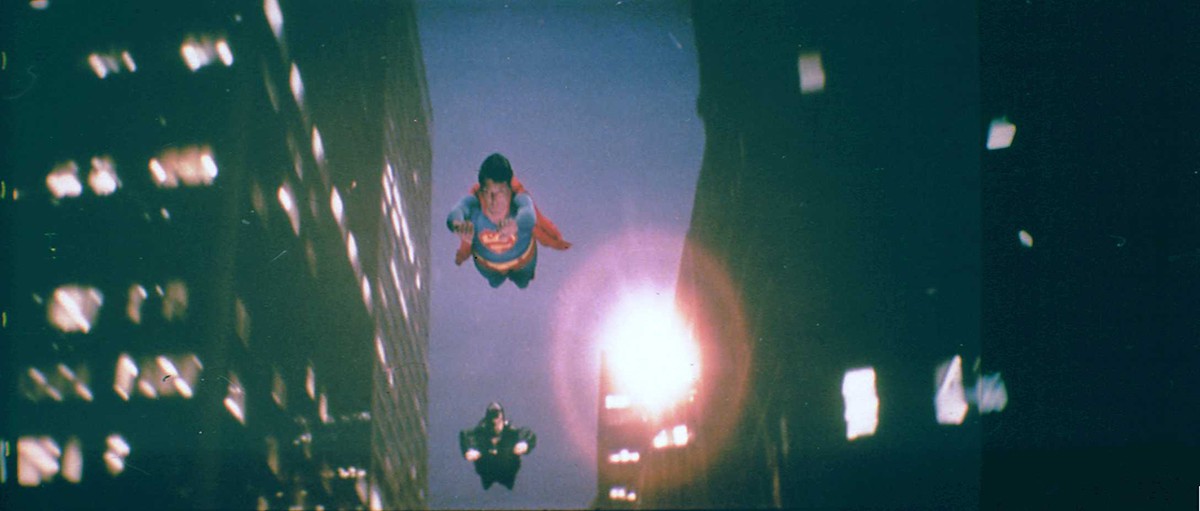
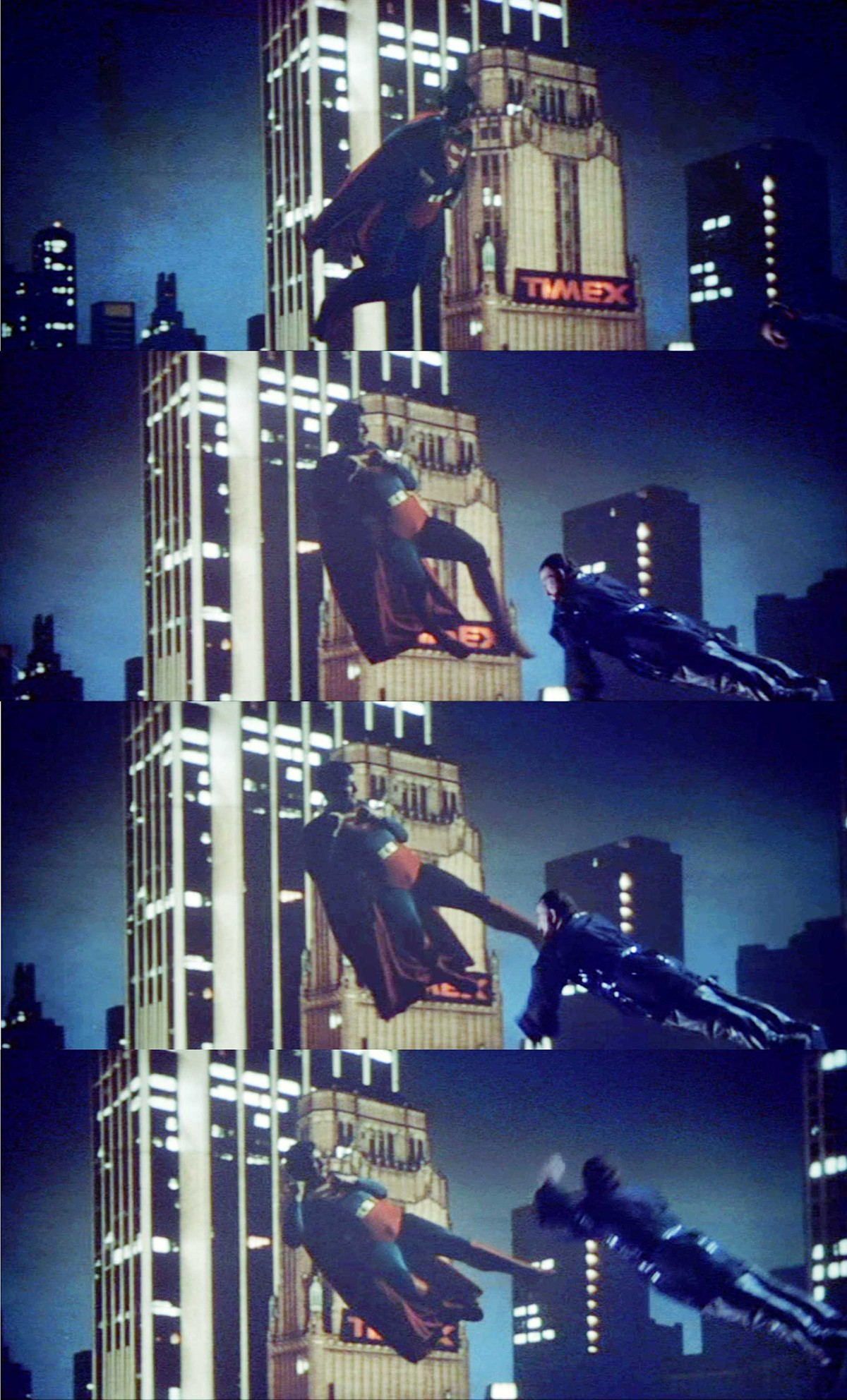
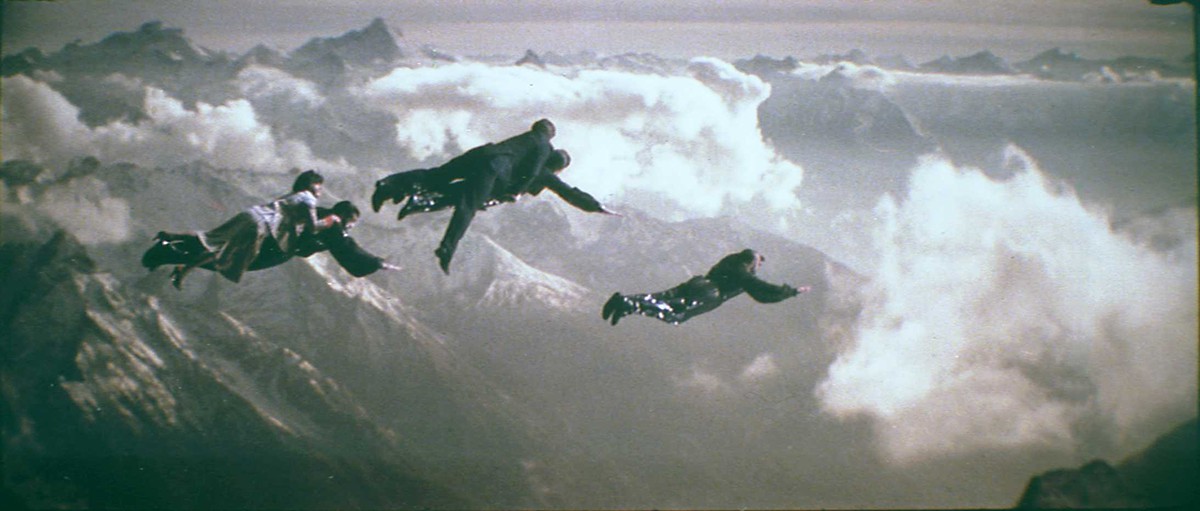
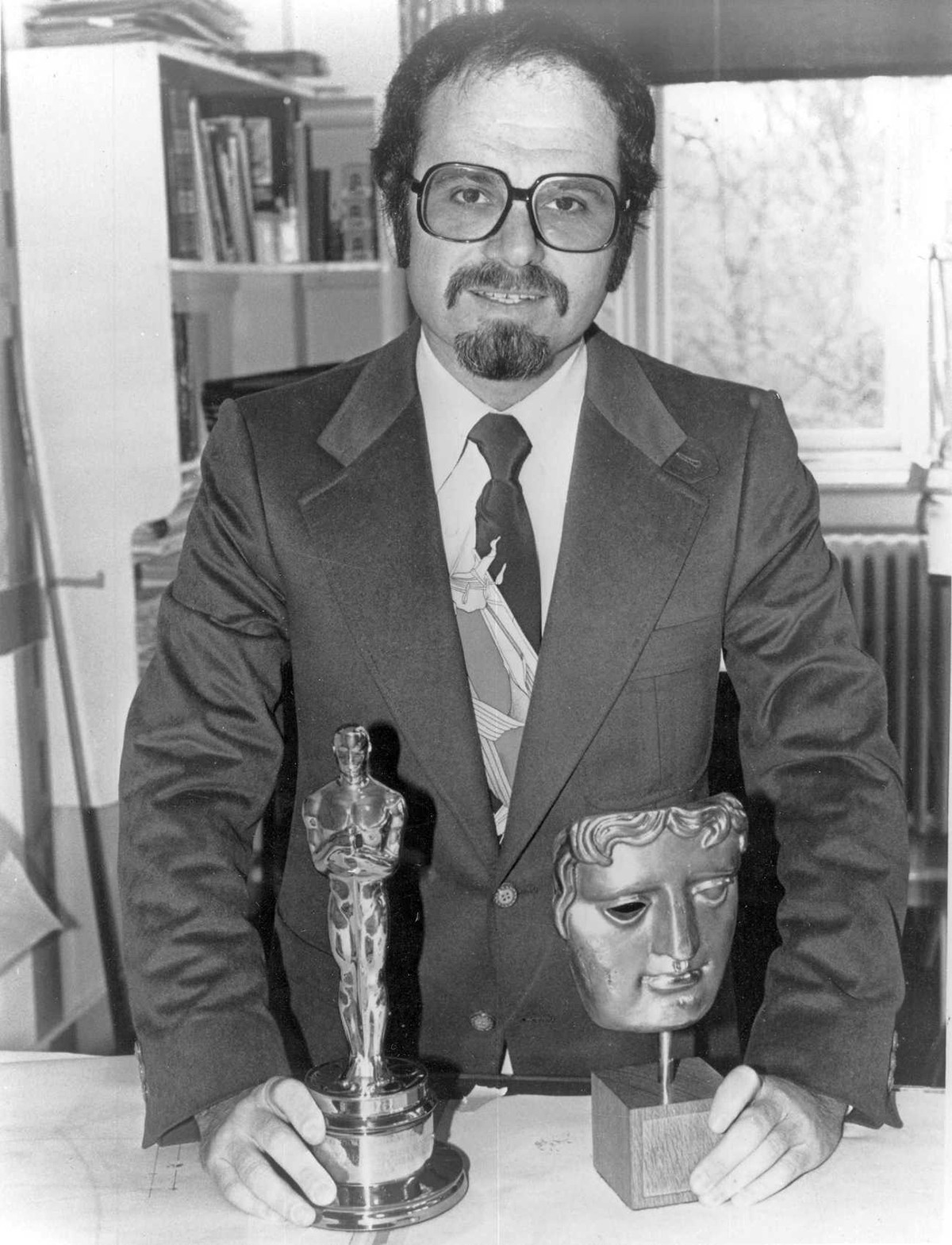
With Man of Steel having been released this year and with fxphd’s new History of VFX course, we thought we’d go back in time and look at the pioneering visual effects technology used on the Christopher Reeve Superman films – the Zoptic front-projection system. We talk to the man behind the system, Zoran Perisic, who was a joint winner of an Academy Award for Superman’svisual effects in 1978 and the recipient of an Academy Scientific and Engineering Award and a Technical Achievement Award.

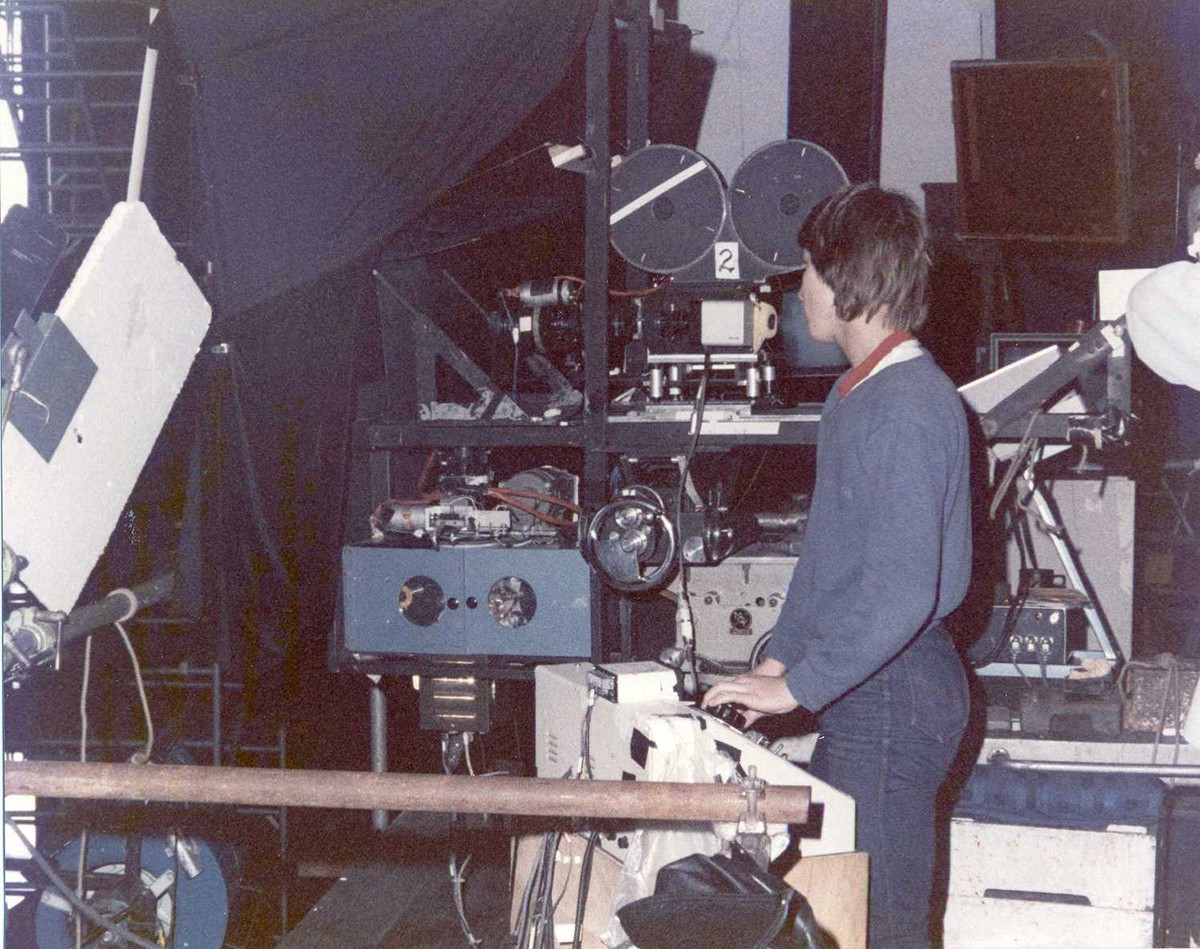
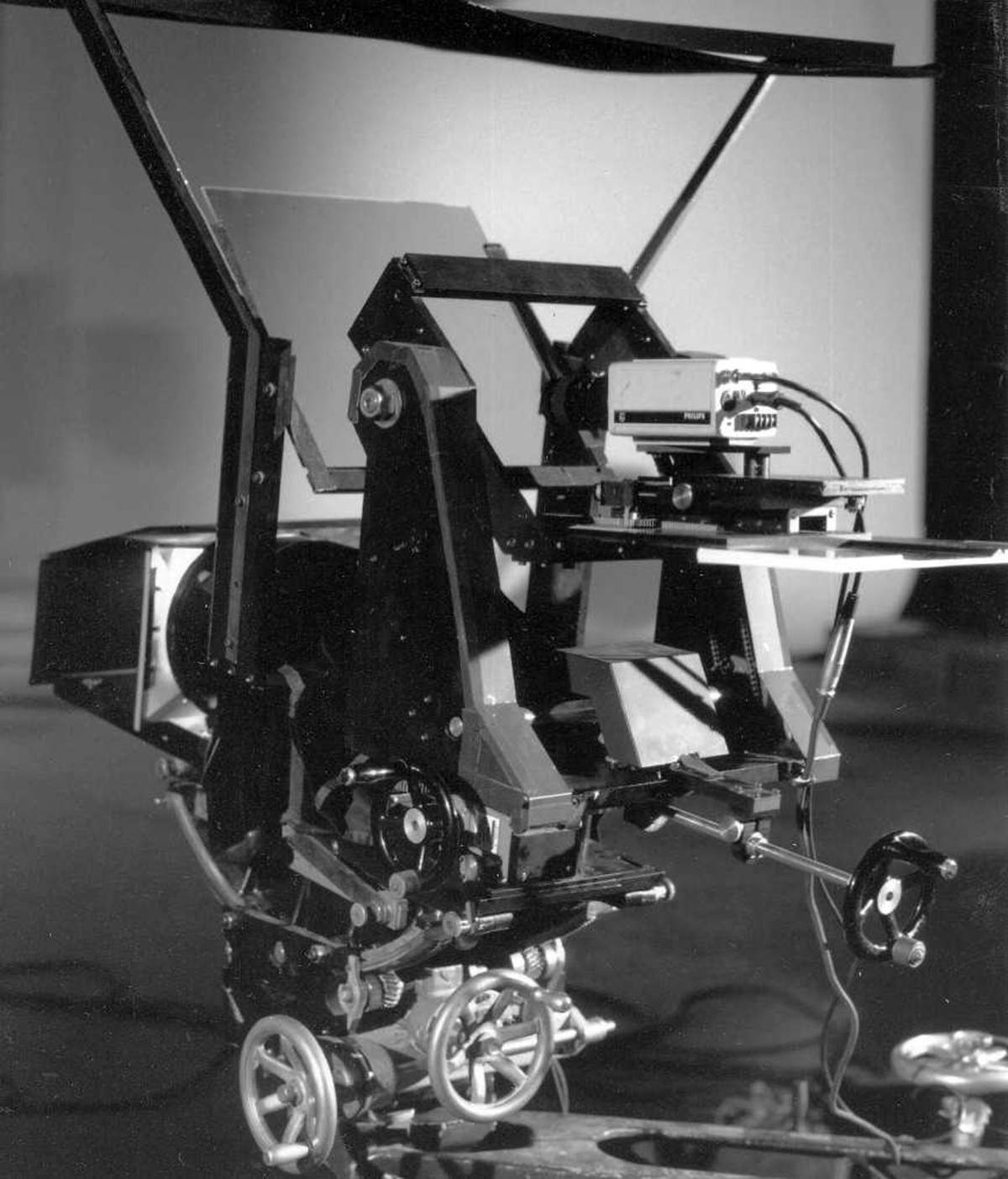
The Zoptic unit used for Superman the Movie.

fxg: Let’s go back to the beginning – what led to you developing the first Zoptic system?

Perisic: We had a lot of challenges on Stanley Kubrick’s 2001- A Space Odyssey with spacecraft and rockets flying against star backgrounds; I felt that there had to be a more efficient way other than rotoscoping and hand painted mattes. Later, while working at Yorkshire TV in England, I was experimenting with slit-scan, using back-projected live action images instead of back-lit moiré patterns as we had done on 2001 – A Space Odyssey. The results were interesting but with limited practical use. I wondered if I could use a thin strip of front-projection material in place of a regular clear slit; I could change the shape of the slit for each frame and so animate the slit-scan distortion effect. This would require mounting a small projector in front of the camera on the slit-scan machine I had built (and installed in our spare bedroom much to the annoyance of my wife).

However if I were to front-project a single frame onto a slit as it “scanned” across the full image the result would be an exact copy of the projected image even if the camera/projector unit was tracking in towards it (the projected image gets smaller but so does the image area seen by the camera lens!).

Needless to say I abandoned that experiment but was intrigued by the idea. Then a thought struck me – what if I were to use the same camera-projector unit to track towards a regular front projection screen while front-projecting a full moving image at 24 fps? (Auto focus and projector iris compensation would, of course, be required but that was all do-able). The result would be a perfect one-to-one copy of the projected image but an object placed in front of the f.p. screen would appear to get nearer as the camera unit tracked towards it resulting in an apparent movement in depth. Bingo!

That in essence was the genesis of Zoptic front-projection system.

The next step was to make a compact camera/projector package that was manoeuvrable so that the “object” placed in front of the front-projection screen could be made to appear to move in any direction within the frame as well as towards or away from the camera while in fact it remained stationary.

Using synchronized zoom lenses on the projector and camera enabled the system to create much subtler and faster maneuvers…and then came a super hero character whose costume featured a blue suit and a red cape – the very colors that make it virtually impossible to derive a good travelling matte using the color difference process (commonly referred to as “blue or green screen” process.) Front-projection was the best option.

Moving Stills Unit.
Moving Stills Unit.

fxg: What were the challenges that front projection was perhaps not meeting before then?

Perisic: Front-projection was used at first as an alternative to back-projection for live action compositing because it was inherently more efficient. It used the same pin-registered projector with the addition of a beam-splitter mirror in front of the projection lens and a camera support (in much the same way as the first digital scanners consisted of a standard optical printer with a digital camera mounted in place of the film camera – a good example of evolution). Specially designed front-projection units came later equipped with nodal heads enabling the camera to pan and tilt across the composite image and even pan off the beam splitter onto an extended foreground set. It was still essentially a fixed set up just as back-projection but it required much less stage space.

I first came in contact with front-projection on 2001 – A Space Odyssey during the shooting of the ‘Dawn of Man’ sequence. The equipment was devised by Tommy Howard and used to project large format stills taken in Africa. It was an unwieldy, cumbersome contraption but the results were incredible. (The set was built on a rotating stage to facilitate changes of angle, with a large front-projection screen behind it.)

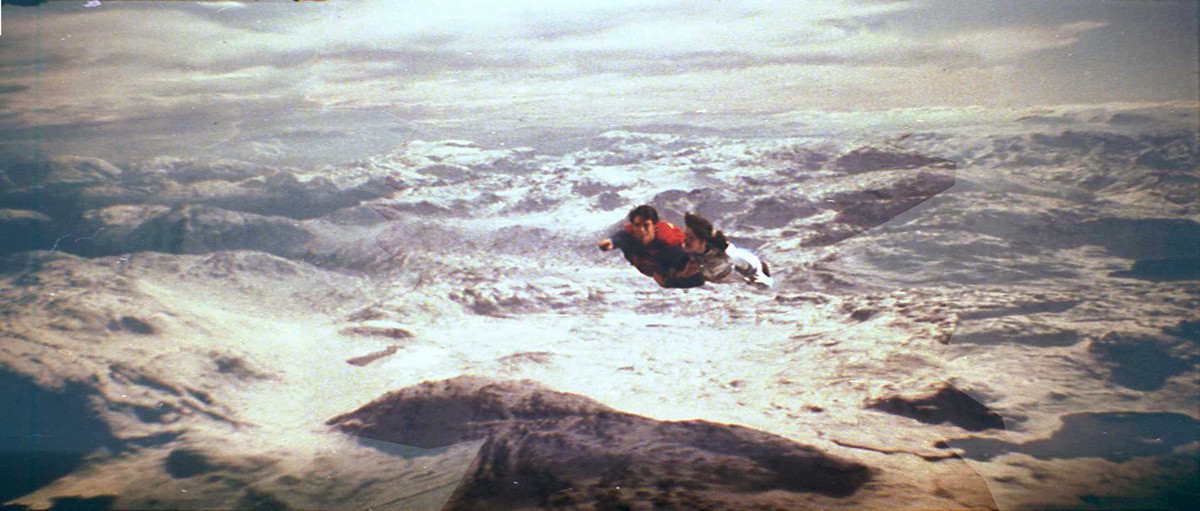
Superman and Louis Lane.
Superman and Lois Lane.

fxg: Can you talk about the camera, projector, lighting, lens, rigging equipment that made up Zoptic? How did this change over time?

Perisic: The bulk of a typical projector designed for back-projection, and later adapted for front projection, consisted of a massive lamp-house. Since the front-projection method required much less light the bulky lamp-house was replaced by a very much smaller unit.

There are two schools of thought on the best way to achieve the maximum brightness from a projector. One is to throw as much light into the film gate and hope that most of it goes through the film plate and is picked up by the lens and ends up as an image on the screen. The alternative approach is to trace the light path from the exit pupil of the lens back through the film gate and to the light source; then to design appropriate optics that will funnel the light bundle along the same optical path and into the lens. A specially designed light source allows for the light path to be bent and a dichroic filter inserted so that only the light in the visible spectrum is reflected towards the lens and the heat is filtered out.


Would you like to learn more about the history of visual effects and milestone films such as Superman? You can with the new fxphd course VFX102: History of Visual Effects, taught by Matt Leonard.


The projector shutter is dispensable for front-projection because the camera shutter blanks out the image in between frames anyway. (I also find that this helps with balancing the lighting of the foreground element to the background image.) On Superman The Movie the publicity department needed a still of Superman flying; a stills camera was mounted in place of the film camera and, with the projector running at speed, a burst of shots were taken without any attempts at synchronization. As a result some of the shots had a vertical smear in the background which added to the illusion of speed. One of those shots became the poster shot for Superman.

As a result a small tungsten halogen lamp can be used to produce a brighter image and of the same color temperature as the lamps used to light the set, which in turn makes it easier to achieve a good color balance between the projected image and foreground element. It also made it possible to use a camera lens on the projector without the risk of damage. However projecting through a camera zoom lens with an anamorphic rear unit is a touch more difficult.

On the original Superman we used Cooke 5:1 zooms with Technovision anamorphics both on the projector and on the camera. On Superman II we used the newly developed f2.8 Cooke Super Cine Varotal 10:1 zoom (25-250mm) on the camera and the 8-perf Vista Vision format on the projector (Super Cine Varotal could be configured for 35mm or VV format). On some of the scenes we used VistaVision to VistaVision in order to generate a composite plate and then used that plate to composite another element as VV to 35mm anamorphic. (e.g. aerial fight scenes and chases through Metropolis.)

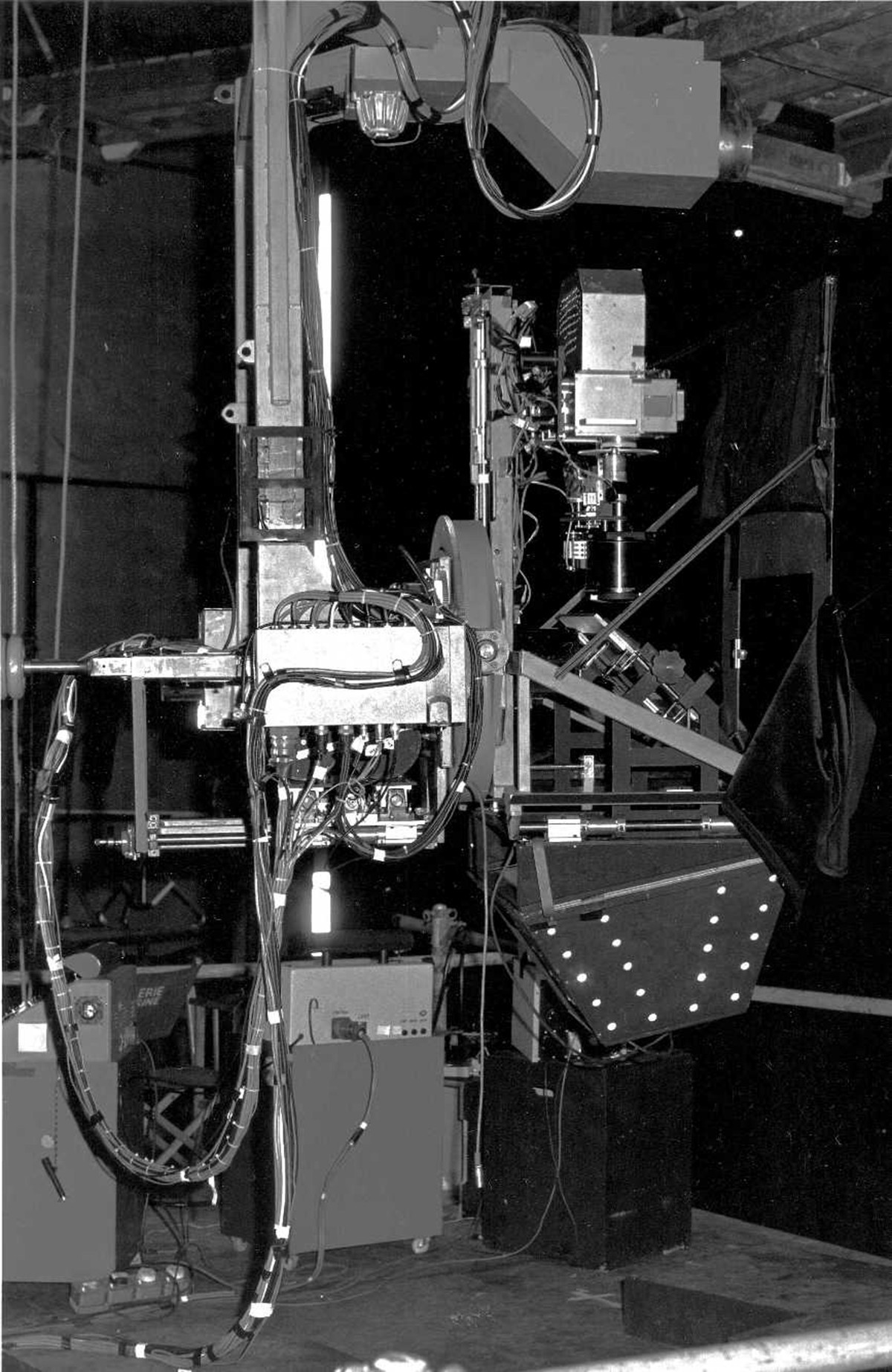
The Zoptic Flying Rig.

Another addition on Superman II was the Zoptic Flying Rig which was suspended from the ceiling and had a 360 degrees rotation in addition to pan and tilt and could be operated manually or remotely. (We also had a motion control computer control unit that could record and playback the Flying Rig moves but soon discovered its limitations for most live action shots). I designed this rig and had it built during the hiatus between the end of production on Superman and the “resumption” of shooting on Superman II (The major portion of Superman II had already been shot by Richard Donner back-to-back with the first movie except for visual effects).

Superman II had the most challenging flying effects of all 3 movies that I was involved with and also achieved the highest quality both in terms of image quality and flight agility.
For reasons known only to the production managers of this world Superman III was shot with 35mm on both projector and camera using Cooke Super Cine Varotal 10:1 zooms and the Flying Rig. I was acting only as a consultant on that one and had, by then, set up base at Paramount Studios in Hollywood with my second complete Zoptic Flying Rig.

fxg: Can you take us through a typical Zoptic shot from say Superman or Superman II – such as a scene of Superman flying past Metropolis buildings?

Perisic: Non chasing Superman down the street at night was one of those shots that required Vista-Vision to Vista-Vision compositing and then Vista-Vision to 35mm anamorphic. Because helicopters were not allowed, the background plates were shot from the back of a camera car. As Superman and Non were flying just above the street lights it was difficult to keep them in the clear area between the light flares in order to maintain the illusion that they were above and behind the lights.

I got an artist to rotoscope the lights in the original background plate and produce a hi-contrast plate which had only clear circles on a black background. A sync mark was made in the camera gate before each take and at the end of the take the film was rewound in the camera; the hi-contrast plate was loaded in the projector and projected on a clear area of the f.p. screen as a superimposition. A diffusion filter in front of the camera lens made the white blobs of the hi-contrast plate flare out to match the flares of the street lights. This of course could have been done later on an optical printer but that would have involved going through another generation.

The chase sequence.
The chase sequence.

Another example of this double-plate technique is Superman kicking Non. Superman flies in towards the camera from top left of frame, somersaults backwards and kicks Non who has flown into the frame from the right. A pole arm was placed through the front projection screen; at the end of the pole arm is a body mold attached by means of a mechanical joint allowing for a pitch and yaw movement. For this shot Chris was lying on his back with his costume covering the body mold which was yawed to a ¾ forward position. At the start of the shot the Zoptic Flying Rig is rotated 180 degrees so that the camera is effectively upside-down – this makes Superman look the right way up – and as the Zoptic unit rotated to normal position the body mold was yawed through 90 degrees so that the feet were pointing towards the camera at the completion of the roll.

The kick scene.
The kick scene.

On the day we did this shot we had rehearsed the move with Chris’s double and waited for him to be released from the main unit (something we had to do a lot of in general as Chris did not like to be doubled). When he came on the flying unit stage I showed him the video assist recording of the rehearsal and started to explain the process. Usually he would want to know every detail of the process but on this occasion he just shook his head saying: “Whoa! That’s way too complicated. Just shout when you want me to do the kick.”

Probably the most difficult shot involved five people in the air – when the 3 bad guys fly to the North Pole taking Lois Lane and Lex Luthor with them.  It involved the use of 3 pole arms on a 90 foot wide curved screen. The pole arms were rotated clockwise and anticlockwise in unison – the Zoptic Flying Rig was also rotated in the same direction cancelling out the apparent rotation effect of the pole arms and so maintaining the appearance of a straight and level flight. As a result the flyers appear to move up and down relative to each other although they are attached to fixed poles.

fxg: What are some of the other camera, effects and other projects you have continued to work on and be involved with?

Perisic: I designed the Moving Stills Front-Projection unit which utilizes a large format still of the background image while only a relatively small area of that image is seen (projected) by the projection lens. The compound carrying the transparency (background image) is moved independently of the projection lens and linked to the gearhead supporting the unit so that when the camera pans and tilts across the f.p. screen, the appropriate area of the transparency is projected by an instant motion control unit. This unit was used on Sylvester Stallone’s Cliffhanger as well as on Gunbus/Sky Bandits and The Phoenix and the Magic Carpet.

I also developed Zoptic Blue/Green Screen front projection unit which allows for a narrow band of a specific color (Blue, Green etc.) to be projected so that a clean, uncontaminated color separation matte of the subject could be extracted. It was used on Batman Returns where Batman and Catwoman’s shiny black costumes presented a particular problem with Blue Screen wrap-around contamination.

And, of course, Z3D. A single camera, single lens, format independent, 3D system for use with both film and digital cameras with an easy to use convergence control and an optical or electronic 3D viewfinder. It can also be used for Front-Projection 3D!

This scene filmed with the aid of 3 pole arms.

fxg: What are your thoughts on the move from optical to digital effects?

Perisic: I look upon this as Evolution rather than Revolution and can see a real danger of “throwing the baby out with the bathwater” if one takes the “revolutionary” approach. It has made the optical printer obsolete but has given rise to the film scanner, digital Inter-negative etc. Green has largely taken precedence over the Blue for screen backing particularly with digital cameras…but it is still the same color separation process that enables the creation of a live action matte, regardless of how the elements are composited.

Well-made and well executed shots using models and miniatures are generally more convincing that the CG shots that look like CG shots. There seems to be a temptation to use CGI animation in live action scenes when it is not necessarily the best solution to a specific FX requirement. Like with any other VFX technique it might be good to remember that “just because one can do it – does not mean that one should do it.”

Front-projection has always been more of a niche technique unlike back-projection and blue screen color separation which were more widely used. The reason, I suspect, is that front-projection requires somewhat more sophisticated equipment in terms of optics and is in limited supply as these units are not mass produced. There is also a tendency to go for the color separation solution because the shots can then be farmed out to various VFX houses for digital compositing. Often the green/ or blue screen elements end up being shot before the backgrounds, which is a bit like putting the cart before the horse.

Perisic with some of his awards.

The use of digital cameras does not automatically preclude front-projection. The moving stills front-projection works perfectly well with any digital camera as there is no need for synchronization – but there is a need for the background plate to be shot first!

Standard front projection requires synchronization between the projector and camera, but this too is no longer limited to film cameras only. In fact projecting a film plate and photographing the composite image with a digital camera offers some interesting advantages in terms of resolution and color balance between the projected background and the foreground. The projected plate can also be originated on a digital camera or as a CG element and printed out to film for front-projection compositing. (We did a 7-Up commercial many years ago, when CGI was in its infancy, by compositing live action with CG animated background which had been printed out to film.)

However using a digital projector in place of a film projector for front-projection would require finding solutions to some major problems in connection with the projection lens and the lamp-house.

There are still only two ways of generating mattes for compositing of live action elements, (apart from “in camera” solutions such as mirror shots, split screens, rotoscoping and wire removal) :

a) Color separation (green screen, blue screen etc.)
b) Process-projection (back-projection, front-projection)
In terms of lighting the front-projection is more suitable for back-lit and cross-lit scenes whereas color separation approach is more suitable for flat, front-lit scenes. Interactive lighting is extremely important in compositing; it enables the DP to blend the foreground and background elements into one coherent image instead of two or more elements spliced together. With front-projection the DP has a complete control of the final image – what you see is what you get.

Perisic now.
Perisic now.

fxg: Can you give your impressions on say Man of Steel and its visual effects?

Perisic: Wall-to-wall CGI must have provided a lot of work. With the new costume for Superman it should have been easier to derive good color separation mattes and produce some effective flying shots. But, alas, the flying is reduced to a few “hovering” shots (wire removal) and a lot of zapping streaks accompanied by very loud bangs.

As for 3D – it was a missed opportunity. The 2D to 3D conversion can only produce a “pseudo” 3D at best with a limited depth illusion behind the screen, but at least it offers an opportunity for some of the CG elements to be re-rendered with a second viewpoint to create at least a few shots that have real depth and can on occasions come forward from the screen plane.

To think that here was a unique opportunity to have Superman fly through the screen and right over the heads of the audience! Such a shot would not need to be accompanied by a loud bang – but it would need to be shot in 3D!

January 16

1/16- Check List for This Week 1/12-to-1/16

Check List For This Week  1/12-to-1/16

——————————————–

1) Project

         AM Class- Green Screen  ____ (45%)

         PM Class-End of the QTR Project  ____  (85%)

(Gavin, Trisha, Jeff, Kelsi, Alexis L, AJ, Brianna, Ruth)


2)  End of the QTR Test   ___  (40%)

3)  Daily Assignments

                  1/13- ____  (15 %)

                   1/14- ___  (15%)

                   1/15- ____ (15 %)

***END OF 2ND QTR***

Click for Quizlet to Study for End of the QTR Key Terms Test

END OF 2nd QTR Grade REVIEW

AM CLASS

4= 60’s

9=70’s

7= LOW 70’s

5= 80’s

1= 90’s

——————–

PM Class

3= 60’s

7=70’s (3 LOW 70’s)

6=80’s

1= 90’s


January 15

End of The Quarter Key Terms Test & Daily Assignment

End Of the Quarter Key Terms Test for Friday 1/16

**30 question test**

*******************

1/15- Daily Assignment

AM and PM Class- Define the key terms below and study with Quizlet for tomorrows test.

********************

Key Terms

——————

hue

high-definition video (HDV)

white balance

ENG/EFP Camcorder

Pixel

Depth of Field

f-stop

iris

rack focus

close-up

dolly

long shot

medium shot

over-the-shoulder shot

pan

tilt

truck

two-shot

condenser microphone

dynamic microphone

lavalier microphone

ribbon microphone

ambience

barn doors

fluorescent

gel

Kelvin (K)

Back Light

Diffused Light

Directional Light

Fill Light

Key Light