March 30

Final Cut Pro X: Editing to Music

Final Cut Pro X: Editing to Music

Click to Watch Editing to Music Video

***Daily Assignment- Pick a song and edit to the beat of the song. One minute Music Video. You can use video you already have or video from youtube. I want to see you edit to the beat of the song! (Show Mr. Schoener you video to get credit for the day)

One tell-tale sign of an amateur editing job is haphazard editing that has no regard for the music beneath it.  You can significantly improve the “feel” of your video projects by using music to your advantage — and accordingly, cutting to it.  This works especially well when you’re cutting montages or action-heavy sequences.

Got rhythm?  Use this trick to quickly line up clips to music beats in Final Cut Pro X.

  • Insert music into your FCPX timeline.  Solo that music track so it’s the only thing you hear (to solo a music track select it in the timeline and use the shortcut OPTION + S).

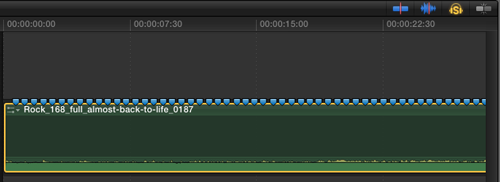
  • Now playback the timeline and tap the “M” key on each beat to place markers.  To keep pace, tap your foot… or if you’re more musically inclined count out the beat!

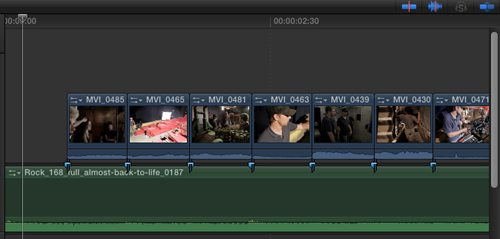
  • Now un-solo the music track.  Insert and line up your video clips to cut at the markers.

Depending on what I’m working on, I will often make this one of the first steps when starting a new project or sequence (even before I have my visuals laid out).

Tip: When bringing your clips down to the FCPX timeline, make sure that “snapping” is enabled (use the hotkey “N”).  This will snap the position of clips in the timeline to the markers.

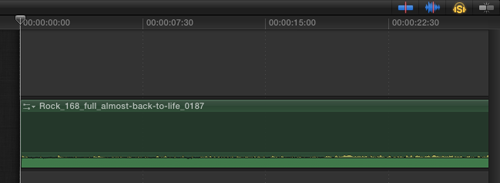
If you’re accustomed to working with audio you can also “read” the audio waveforms to line up action to music without using markers.  If there’s a significant beat in your music you may seem a spike in the waveform on each hit.  This is easier/harder depending on the track of music, and without the markers you won’t be able to take advantage of the snapping function.

FCPX has some really nice tools for working with music (improved filters and effects), but this one little trick can make the biggest differences in successfully using music in your projects. Remember, work with the music!    Use it to enhance your story and to give your project pacing and momentum!

March 27

Check List for This Week 3/23-to-3/27

Check List For This Week 3/23-to-3/27

————————————————

1)  Project #2          ___ (45%)

2) Key Terms Test Chapter 20  ___ (40%)

3)  Daily Assignment

Color Correction  (Monday 3/23)  ____ (15%)

Audio Editing  (Tuesday 3/24)       _____ (15%)

Effects and Transitions (Wednesday 3/25)  ___ (15%)

Slow Motion    (Thursday 3/26)                      ___ (15%)

******MAKE UP FRIDAY***********

Video Projects:

Point of View video: A video shot from the subject’s perspective. Often times these types of videos are shot by the subject with a mounted camera. (GoPro video camera)

http://videos.syracuse.com/post-standard/2013/12/point_of_view_winter_fun_at_fo.html

http://videos.syracuse.com/post-standard/2013/11/marching_with_the_syracuse_uni.html

Video Review: Select a product and perform a review and disclose your findings in the form of a video.

http://www.youtube.com/watch?v=3Y51zatx9qs

http://www.youtube.com/watch?v=RU7I9P-fCB0

CLICK HERE to view a view on tips for making a review video.

Viral Video: “What So Cool About My School” – A video that becomes popular through the process of internet sharing, typically through video sharing websites, social media and email. Content is usually funny, and/or includes “catchy” music.

http://www.youtube.com/watch?v=osMrBj_AWfU

Tips on how to produce a Viral Video:

http://www.videomaker.com/article/15656-how-to-make-a-viral-video-11-tips-to-create-a-youtube-sensation

Movie Trailer: Using video shot by you, produce a movie trailer. The video must be no longer than 3 minutes. All video must be shot by you. The video must include music.

CLICK HERE to view a video tutorial on making a movie trailer.

https://www.youtube.com/watch?v=LDS6mzKcVws

https://www.youtube.com/watch?v=W41UYYb9P4I

https://www.youtube.com/watch?v=CC-DU1ayajg

Long Portrait: Shooting portraits with video. A collection of 10 “video” portraits that says something about your subjects, without them speaking.

5X5 Video: Produce a video that tells a story…the entire video can only consist of 5 video clips that are 5 seconds.

March 26

Final Cut Pro X- Slow Motion and Motion Stabilzation

3/26- Final Cut Pro X- Slow Motion and Motion Stabilzation

————————————————

Click to Watch Motion Stabilization/Smoothing Tutorial

Click to Watch Video on Slow Motion How To

Click to Watch Video on Smooth Slow Motion

*****Daily Assignment******

    1) Read the post below

    2) Watch this Video on Slow Motion and Fast Motion

          Watch this Video on Motion Stabilzation

    3)   Video Project Daily Assignments

           A) Take a shaky video that you have, maybe from your POV project and use the Stablization effects to smooth out the shots.

          B) Take some video you have already shot and slow it down for 20 seconds, then speed it up for 20 seconds. (Make sure Mr. Schoener see’s your video work to get credit for the day)

FCP X: High-Quality Slow-Motion

While we can create slo-motion in Final Cut Pro X using retiming (Modify > Retiming > Slow Motion), the problem with slomo created during post-production is that, often, the image quality suffers.

The reason for this is that the software needs to “invent” data to create the slow motion. For example, normally, if you shoot a clip at 30 fps and edit that into a 30 fps Timeline, video frame 1 plays at Timeline frame 1, video frame 2 plays at Timeline frame 2 and so on.

But, let’s say we want that clip to play at 50% speed. FCP plays video frame 1 at Timeline frame 1 AND frame 2. Video frame 2 plays at Timeline frame 3 and frame 4. In other words, the duration of each video frame is doubled, making it appear as though it was playing in slow motion.

Playing the same video frame multiple times works fine when you only want to slow a video clip a little bit. But, as you stretch a frame into a longer and longer duration, the video starts to look more and more like a series of still images, rather than slow motion. For example, a video clip playing at 10% speed stretches the duration of each video frame to 1/3 of a second (for a 30 fps Timeline)!

As speeds get really slow, FCP “invents” visual data by looking at all the pixels in source video frame 1 and comparing them to all the pixels in source video frame 2. Then, FCP creates as many in-between frames as necessary by moving the pixels incrementally from their starting position to their ending position. (Animators call this “tweening.”) This creates much smoother slow motion but generally damages the visual quality of the image because so much data is invented, not shot.

A much better way to create slow motion is to shoot the original activity with a camera recording at a high-frame rate. This provides the best possible image quality, though it does require your camera to shoot at frame rates faster than normal playback. This is why you read about cameras shooting 120 fps, or 500 fps. The Phantom camera is legendary for shooting thousands of frames per second for truly dazzling slow motion.

However, we don’t need to shoot at extremely high frame rates to slow something down. For example, shooting 60 fps video for playback in a 30 fps Timeline yields 50% slow motion with a higher image and movement quality than can be achieved using software alone. (Or, shoot 50 fps for playback at 25 fps to achieve 50% speed.)

NOTE: I’ve been told that NFL Films shoots all their game coverage at 32 fps, for playback at 24 fps. Even that small 25% speed slow-down yields amazing results.

THE PROBLEM

The problem is: how do you get Final Cut Pro X to play high-frame-rate video in slow motion? Because, by default, FCP plays all clips, regardless of frame rate, at the speed that makes motion look normal.

For example, if I shot 60 fps material, but played it in at 24 fps Timeline, FCP would adjust the speed of the source clip so that the video would play as though it was shot originally at 24 fps. It does this by smoothly dropping unneeded frames. Hmm.  That’s nice, but not what I want.

Converting normal playback speed to slow motion is easy, but not intuitive.

AN EXAMPLE

One of the more interesting booths at BVE 2014 in London this year was CVP (www.cvp.com). Here, they had an artist creating large-scale paintings and we got to watch the creative process. (Which, I might add is a WHOLE lot messier than video editing!)

Our team recorded some video of him working (thanks, Michael!) to use as part of our BVE coverage for our YouTube channel.

If we select the clip in the Browser and open the Inspector (Cmd+4) and click the Info tab, we see that this clip was shot 720p at 59.94 fps progressive. (I tend to use this setting for all my web materials.)

Normally, when I create a new project, I would let FCP select the project frame rate based upon the frame rate of the first source clip edited into the Timeline.

But, in this case, I want the source clips to play back in slow motion. To do this, create a custom project using a slowerframe rate than the source video clip.

For example, here, the project shows a 23.98 fps frame rate.

When the clip is edited into the Timeline. notice that the Timeline retains the speed you set in the Project Properties panel, not the speed of the first clip edited into it.

NOTE: I have sometimes seen FCP reset the frame rate based upon the speed of the first clip edited into the Timeline. To prevent this, edit a generator into the Timeline first. This “freezes” the frame rate. Once you’ve edited at least one source video clip into the Timeline, you can remove the generator.

To convert the clip from playing at 100% speed to playing in slow motion, select the clip in the Timeline, then either choose Modify > Retiming > Automatic Speed, or, from the Retiming menu in the Toolbar (which looks like a Smurf wearing a headset) select Automatic Speed.

Instantly, the clip displays the Retiming Editor at the top of the clip and adjusts the speed of the clip so that every frame in the video plays back in the Timeline.

When you play the clip, you have instant slow motion with beautiful images. In this example, the clip is playing at 40% of normal speed.

Very cool and very easy to do.

EXTRA CREDIT

You can use this technique to create fast motion video by creating a project with a frame rate that’s faster than the source video clips. However, for most situations, time lapse photography in the camera will yield faster speeds and better results.

March 25

College Spotlight: Kutztown University

College Spotlight: Kutztown University

Click to Watch Video on Communication Design

Click to Watch Electronic Media Department Promo

Click to View Kutztown University Website

Bachelor of Arts in:
Communication Studies

With a Bachelor of Arts in Communication Studies, students take courses that integrate the theoretical understanding of communication with the practical application of communication skills. Communication studies includes the study of many kinds of communication including rhetoric and public speaking, performance studies, media and new technologies, interpersonal communication, organizational communication, health communication, public relations, and intercultural communication. Students can choose to specialize in one or more of these areas of communication in order to tailor their major to their unique interests and career goals. In addition, students can explore their areas of interest through hands-on-learning experiences such as internships and service-learning.

The program is offered by the Department of Communication Studies and Theatre.

Minoring in communication studies is an 18 credit option. We also offer an interdisciplinary minor in Public Relations in coordination with the Department of English.

Faculty
Whether you are interested in improving your public speaking skills or adapting literature for stage or screen, whether you want to learn to captivate a large audience or understand how people communicate in families and intimate relationships, whether you want to know how to use new technology to spread your public relations message or conduct research in health communication, the faculty are here to help you understand how communication works and apply this knowledge to your personal and professional goals. Our faculty’s research on communication is included in books, journals and nationally recognized conferences such as the National Communication Association Convention and International Communication Association.

Career Opportunities
Graduates of this program acquire the knowledge of how communication functions as well the skills to communicate interpersonally, in small groups, in the workplace and with the use of media. Therefore, communication studies majors can pursue employment in a wide range of industries including business, not-for-profit organizations, media companies, hospitals/health care agencies, public relations/advertising firms, and jobs in politics/government, training/education, performing arts/entertainment and human resource sectors.

March 25

3/25- Final Cut Pro X- Video Effects & Transitions

FINAL CUP PRO X- VIDEO EFFECTS & TRANSITION

Click to Watch Video Effects & Transition Video

Click to Watch Video on Final Cut Pro X Video Effects

*****DAILY ASSIGNMENT**********

1) Read the Information below on how to make a custom Transition then make one.

2) Click and Watch this Video on Effects & Transition

  Click to Watch all the Transitions Effects you can do for your video

3) You will make a video using 10 video effects and 10 video transition. That’s a total of 20! I don’t care what the video is about, I’m looking to see if you know how to use effects and Transitions. (The video can be something you shot before or something you downloaded from youtube.)

==============================

Custom Transition Browser Shortcut

Final Cut transitions are accessed via the Transition Browser. In the media browser buttons, the right side of the toolbar, the center button opens the Transition Browser.

Figure 1

To make this easier, use Option-Command-K to open the Commands window. Type the word “transition” in the top right search field. You’ll see two commands in the center list: Add Default Transition and Show/Hide Transitions Browser. Click on the “T” key in the keyboard above it, in the Key Detail pane you’ll see all of the options available for the T key. Option is unused, so click the Option Button above the keyboard layout. Drag and drop the “Show/Hide Transitions Browser” command onto the T key. Click the Save button at the bottom right. If you haven’t already, you’ll be prompted to create your own custom keyboard layout. Now Option-T opens the Transition Browser.

Figure 2

Searching Transitions

You will obviously end up with more third party transitions and hopefully a good number of your own creations eventually. They are all in Collections, that are the list on the left side of the browser. When you create your own in Motion 5 and are prompted to save, assign it a Collection name that will be easy to recognize.

Figure 3

If you need to find a transition and can’t remember where it is, type in the search field at the bottom of the transition browser. The search is a live update as you type each letter.

Figure 4

When you find a transition, you can preview it by clicking it once then slowly dragging your mouse over the thumbnail in the browser. A preview will show in the Viewer. You can also simply hit the spacebar and it will loop playback for previewing.

Applying Transitions

There are several ways to apply transitions. The first method, grab a transition thumbnail in the browser and drag it onto the edit point in the timeline.

Figure 5

A faster method is to click the edit point to highlight it, then double-click a transition thumbnail in the browser. If you don’t have “handles” or enough unused media in either or both clips, you will be prompted to do an Overlap, which pulls one or both clips closer together so there is enough media to cover the transition. Remember, a transitions adds to the duration of all clips involved.

You can also highlight one or more clips then double-click a transition thumbnail to apply it across multiple edit points at once.

If there is a transition already in the timeline, you want to reuse we have two options. Select it, use Command-C to copy it, select a new edit point, use Command-V to paste it. Or you can Option-Drag a transition from one edit point to another.

Setting Defaults And Customizing

Command-T inserts the default transition to a selected edit point. To change this, in the transition browser, right-click a transition and select Make Default from the pop-up menu. To see which is the current default, clear the search field, in the categories column select ALL. The first one listed is the default.

To customize a transition, right-click its thumbnail in the browser, then select Open In Motion from the popup menu.

Figure 6

Video & Audio Only Transitions

To apply a video only transition you much either use Expand Audio/Video (Control-S). Then select the edit point and use Command-T or drag and drop to apply the transition.

Figure 7

For audio only transitions, if the are connected clips use Command-G to place them in a Storyline, apply your transition. If they are part of a video clip, Command-Shift-S will detach them, then put them in a Storyline, apply transitions.

Figure 8
March 24

Chapter 20 Key Terms (Test on Friday March 27th)

Chapter 20 Key Terms

Key Terms Test Friday March 27th

Click to study with Quizlet

———————————-

1. complexity editing- The juxtaposition of shots that primarily, though not exclusively, helps intensify a screen event. Editing conventions as advocated in continuity editing are often purposely violated.
2. continuity editing -The establishment of a visual flow from shot to shot–to make the series appear seamless.
3. cutaway- A shot that is thematically connected with the overall event. When inserted between jump-producing shots, it will camouflage the position shift. Used to facilitate continuity.
4. graphic vector-A vector created by lines or by stationary elements in such a way as the suggest a line.
5. index vector- A vector created by someone looking or something pointing unquestionably in a specific direction.
6. jump cut- Cutting between shots that are identical in subject yet slightly different in screen location, or any abrupt transition between shots that violates the established continuity.
7. mental map- Tells viewers where things are or supposed to be in on-and off screen space.
8. montage -The juxtaposition of two or more separate event details that combine into a larger and move intense whole–a new gestalt.
9. motion vector -A vector created by an object actually moving or perceived as moving on-screen.
10. vector- Refers to a perceivable force with a direction and a magnitude. Vector types include graphic vectors, index vectors, and motion vectors.
11. vector line- A dominant direction established by two people facing each other or through a prominent movement in a specific direction. Also called the line, the line of conversations and action, and the hundredeighty.

March 24

Final Cut Pro X: Audio Editing Overview and Daily Assingment

Final Cut Pro X: Audio editing overview

Click Audio Cleanup in Final Cut Pro X Video

Click to Watch Editing Audio in Final Cut Pro X Video

Click to Watch Final Cut Pro X Audio Editing Video

 Final Cut Pro includes tools for editing audio clips or multiple audio channels. You edit audio in two ways, detailed below.
Volume control being adjusted in clip

Clip-level audio editing

You can make audio adjustments and edits to whole clips. At this level, audio adjustments and effects are applied to the entire clip, including any audio channels within the clip. Final Cut Pro preserves any adjustments you make to individual audio channels. This means that if you reduce the volume for a single channel but raise the volume for the whole clip, the volume of the single channel is raised but stays in proportion to the volume of other channels in the clip.

If your source media contains only one or two audio channels or you’re editing an audio-only clip, you’ll probably only need to make adjustments and edits at this level.

Advanced multichannel audio editing

Final Cut Pro automatically groups channels into audio components according to how the channels are configured for the clip. You can expand the audio portion of clips to reveal and edit audio components down to the individual channel level. This allows you to apply different effects to different components and streamlines the process for making quick sound cutouts to a single microphone input or other fine adjustments.

Important:   Many digital audio file formats, such as AAC and MP3, use interleaved stereo files, which do not contain separate left and right channels. These files appear as a single audio component unless you change the clip’s channel configuration.
——————————————
***Daily Assignment- Practice each of the follow steps below:**********Use the tools below to do a  Audio SMASH-UP, Four different audio sources all mixed and edited into one SMASH-UP! Share your Smash-Up with Mr. Schoener before the end of class to get credit for your daily assignment.*******

Keep in mind the following when editing audio components in Final Cut Pro:

March 23

3/23- Final Cut Pro X Basic Color Grading (Daily Assignment)

Final Cut Pro X Basic Color Grading

Click to Watch Color Correction Video from MacPro

Click to Watch Video on Color Correction

Click to Watch Final Cut Pro X Basic Color Grading Video

———————–

Daily Assignment- Read below, Make 10 color grading, corrections in Final Cut Pro all on the same timeline. Show Mr. Schoener so you get credit for it.

It’s time to dive in deeper and see how Final Cut Pro X can solve your color grading issues. A lot of FCP X fans like to say that Apple rolled Color into FCP X, but that’s pretty far from the truth. Some features from Color have counterparts in X, but the two applications are completely different and the number of tools at your disposal in Color greatly exceeds the toolset in X. Furthermore, X has no real color correction workflow as you’d find in any grading tool, FCP 7 or other NLE’s like Avid Symphony. That being said, rest assured that Apple definitely improved the color processing pipeline inside FCP X. The way grading affects the image is cleaner and the final results are an improvement over FCP 7. If you can live with the current limitations, you can definitely do quality work within the Final Cut Pro X interface.

The color correction tools center on the tabbed color board section of the inspector pane. The color board offers three tabs for exposure, saturation and color (tint). There’s a submenu accessed from the gear icon for various presets. These provide a quick starting point for the editor who isn’t experienced with color correction. You can also save your own presets from this menu. A number of useful color-oriented filters can also be found in the Looks and Stylize effects categories. If you wish to expand your color board preset options, check out theLustre Grade Presets from Color Grading Central.

The color board tabs each have four pucks or sliders for global, shadow, midtone and highlight range controls. The exposure and saturation tabs only allow the pucks to go up or down to increase or decrease each value. The color (tint) tab has pucks that can be moved over the entire color swatch range. This tab uses a split-toning approach, rather than the customary hue offset/color wheel model. Move a puck up or down and over a specific color to add or subtract that color’s intensity from one of the four ranges.

The power of the color board comes into play when you start to use more than one instance of the correction. You can apply full screen corrections or have a selection restricted by an HSL key or a shape mask. Corrections may be applied to the inside or outside of a mask. As you’ll see in the examples that follow, you can stack several full screen corrections along with several masked corrections for elaborate grading of footage. Since color board settings are clip modifiers, they aren’t very taxing on real-time playback.

I’ve previously written about the FCP X color correction tools, as well assome of the filters and filter suites available for X. In addition, checkFCP.coAlex Gollner’s site and Ripple Training for more options. When I wrote “Demystifying Color Grading II,” I used the short film Convergenceas an example. Director Martin Scanlan and DoP Steve Lawes shot it with a pre-release Sony F3 and posted the ungraded version at Vimeo, inviting users to download it and to play with. I’ve revisited Convergence in this post. As before, I downloaded the H.264 file, converted it to ProResLT and used that inside FCP X. Since that’s a lot of compression and recompression, you’ll have to excuse some of the images if there’s a bit of crunchiness to them.

Color correction – aka color grading – has two objectives – technical and aesthetic. For the technical, you want to make sure balance, exposure and contrast are right and that shots are consistent within a scene. Since these clips are ungraded images straight from the camera, the starting point for each shot will look a bit flat and somewhat green. A lot of my correction was simply to create a punchier image and to reduce the green cast. Or in some cases, push further in that direction as a choice. The second part of grading is to add a subjective look. Often this verges into “relighting” a shot by brightening some portions and darkening others – much like burning and dodging in photography. The point is to focus the viewer’s attention where you want it to be and to reduce or eliminate distractions.

I’ve posted grades on 21 shots. These are not meant to be consistent nor necessarily how I would actually grade this short film. These are merely an assortment of directions you can go in using the color board, plus a few other filters. Feel free to click on any of the images in this post and at the links within the steps to see a more detailed view.

_____________________________________________________________________________________

Shot 1

a. Ungraded original   [Click to view]

b. Tokyo ShadowsHighlights filter for overall tonal adjustment   [Click to view]

c. Color board 1 – bright and more normal flesh tone   [Click to view]

d. Color board 2 – mask to create vignette – darken outside of mask   [Click to view]

e. Final after vignette is applied   [Click to view]

Objective – Brighten the shot and get a more natural skin tone. Emphasis lighting focus on the actor.

Shot 2

a. Ungraded original   [Click to view]

b. Color board 1 – orange and teal tonal style   [Click to view]

c. Color board 2 – HSL key to isolate face and make it more normal   [Click to view]

e. Color board 3 – HSL key to isolate scarf and reduce intensity   [Click to view]

Objective – End up with an “orange & teal” tonality, without fluorescent reds in the scarf as a byproduct.

Shot 3

a. Ungraded original   [Click to view]

b. Tokyo CrossProcess filter to alter tones and add glow   [Click to view]

c. Color board 1 – adjust tonal range – more golden   [Click to view]

d. Color board 2 – shape mask for gradient correction at the top   [Click to view]

Objective – A more striking shot with an obvious “over-the-top” tint to the sky.

Shot 4

a. Ungraded original   [Click to view]

b. Color board 1 – more contrast and more blue   [Click to view]

c. Color board 2 – HSL key to isolate grass and reduce intensity   [Click to view]

d. Color board 3 – shape mask to add vignette and darken edges   [Click to view]

Objective – Bring the actor out of an otherwise murky shot.

Shot 5

a. Ungraded original   [Click to view]

b. Color board 1 – more contrast and saturation   [Click to view]

c. Color board 2 – add mask for face   [Click to view]

d. Color board 2 – brighten area in mask   [Click to view]

e. Color board 3 – shape mask to add vignette and darken edges   [Click to view]

Objective – Add more snap to the image and brighten the actor’s face.

Shot 6

a. Ungraded original   [Click to view]

b. Color board 1 – tonal change to make it more blue   [Click to view]

c. Color board 2 – HSL key to isolate face and make it more orange   [Click to view]

Objective – Another variation to the “orange & teal” look with definite blue casts to the dark areas.

Shot 7

a. Ungraded original   [Click to view]

b. Color board 1 – more contrast, less saturation   [Click to view]

Objective – Add more snap to the image. Moving in the direction of a “bleach bypass” look without going that extreme.

Shot 8

a. Ungraded original   [Click to view]

b. Tokyo Tilt-Shift filter (applied twice) to blur outer edge   [Click to view]

c. FCP X Teal & Orange filter for stylized look   [Click to view]

d. FCP X Vignette filter to darken outer edge   [Click to view]

e. Color board 1 – to adjust image tonality   [Click to view]

Objective – A dreamier look suitable for flashbacks, using selective focus.

Shot 9

a. Ungraded original   [Click to view]

b. FxFactory / DVShade EasyLooks for correction and glows   [Click to view]

Objective – A dreamier look suitable for flashbacks, using diffusion, glows and added warmth.

Shot 10

a. Ungraded original   [Click to view]

b. Octo filter to mask right edge   [Click to view]

c. Set filter to blur for swing-tilt effect   [Click to view]

d. Octo filter 2 set to vignette to darken right edge   [Click to view]

e. Color board to change tonality towards browns   [Click to view]

Objective – Feature the actor better in the shot by using selective focus and changing the overall tonality of the shot.

Shot 11

a. Ungraded original   [Click to view]

b. FCP X Aged Film filter to add grain   [Click to view]

c. Color board 1 – more contrast, less saturation   [Click to view]

d. Color board 2 – shift tonality towards blue   [Click to view]

Objective – Create a distressed look by adding grain and more blue tones for a cooler look. Also added touches of the “bleach bypass” look (more contrast, lower saturation).

Shot 12

a. Ungraded original   [Click to view]

b. Pomfort AlexaLook2Video LUT filter – misused for effect   [Click to view]

Objective – Adding more snap to the image. In this case, I’m pushing it to an extreme by using an ALEXA LUT filter not intended for this purpose.

Shot 13

a. Ungraded original   [Click to view]

b. Tokyo ShadowsHighlights for tonality, glow and diffusion   [Click to view]

c. Color board 1 – more contrast and more orange skin tones   [Click to view]

d. Color board 2 – HSL key to isolate face – more orange tones   [Click to view]

Objective – Adding more snap to the image. In this case, I’m pushing it to an extreme by using highlight glows and a push to the orange with her skin tones.

Shot 14

a. Ungraded original   [Click to view]

b. FCP X Super 8mm filter for tonal style and grain   [Click to view]

c. Color board 1 – slightly darker and less saturated   [Click to view]

Objective – A more “filmic” look, with a touch of distress.

Shot 15

a. Ungraded original   [Click to view]

b. Tokyo CrossProcess filter to tonal, glow and vignette effects   [Click to view]

Objective – This is a cross-process look. The idea stems from film processing where chemicals for one film stock are used to process a different stock, resulting in color contamination. In this case, a shift towards blues and greens.

Shot 16

a. Ungraded original   [Click to view]

b. Color board 1 – tonal adjustments   [Click to view]

c. FCP X Colorize filter to make image warmer   [Click to view]

d. Alex4d Soft Focus filter to add diffusion   [Click to view]

Objective – A more romantic feel, using diffusion and warmth.

Shot 17

a. Ungraded original   [Click to view]

b. Color board 1 – tonal adjustments   [Click to view]

c. Color board 2 – shape mask for vignette to darker right half   [Click to view]

d. Color board 3 – HSL key to isolate and change contrast on face   [Click to view]

Objective – Relight the shot to focus in on the actress.

Shot 18

a. Ungraded original   [Click to view]

b. Color board 1 – tonal adjustment   [Click to view]

c. Color board 2 – shape mask to highlight woman   [Click to view]

d. Color board 2 – brighten inside of mask – woman’s face   [Click to view]

e. Color board 3 – shape mask to highlight and brighten man   [Click to view]

f. Color board 4 – HSL key to isolate and reduce intensity of lights in background   [Click to view]

g. Color board 5 – HSL key to isolate blues in sky and change the tonality   [Click to view]

Objective – Relight the shot to focus in on the two actors. Also darken the sky for a more brooding feel.

Shot 19

a. Ungraded original   [Click to view]

b. FxFactory / PHYX Techni2Color filter to shift tonality   [Click to view]

c. FxFactory / PHYX BleachBypass filter to brighten image   [Click to view]

d. FxFactory / PHYX GlowDark filter to diffuse image   [Click to view]

e. Color board adjustment to shift tonality for stylized effect   [Click to view]

Objective – Change the entire style of the shot. The pseudo “Technicolor” process adds a blue shift and the “bleach bypass” can be used for color correction with less obvious effect. The Glow Dark filter controls local contrast adding subtle diffusion.
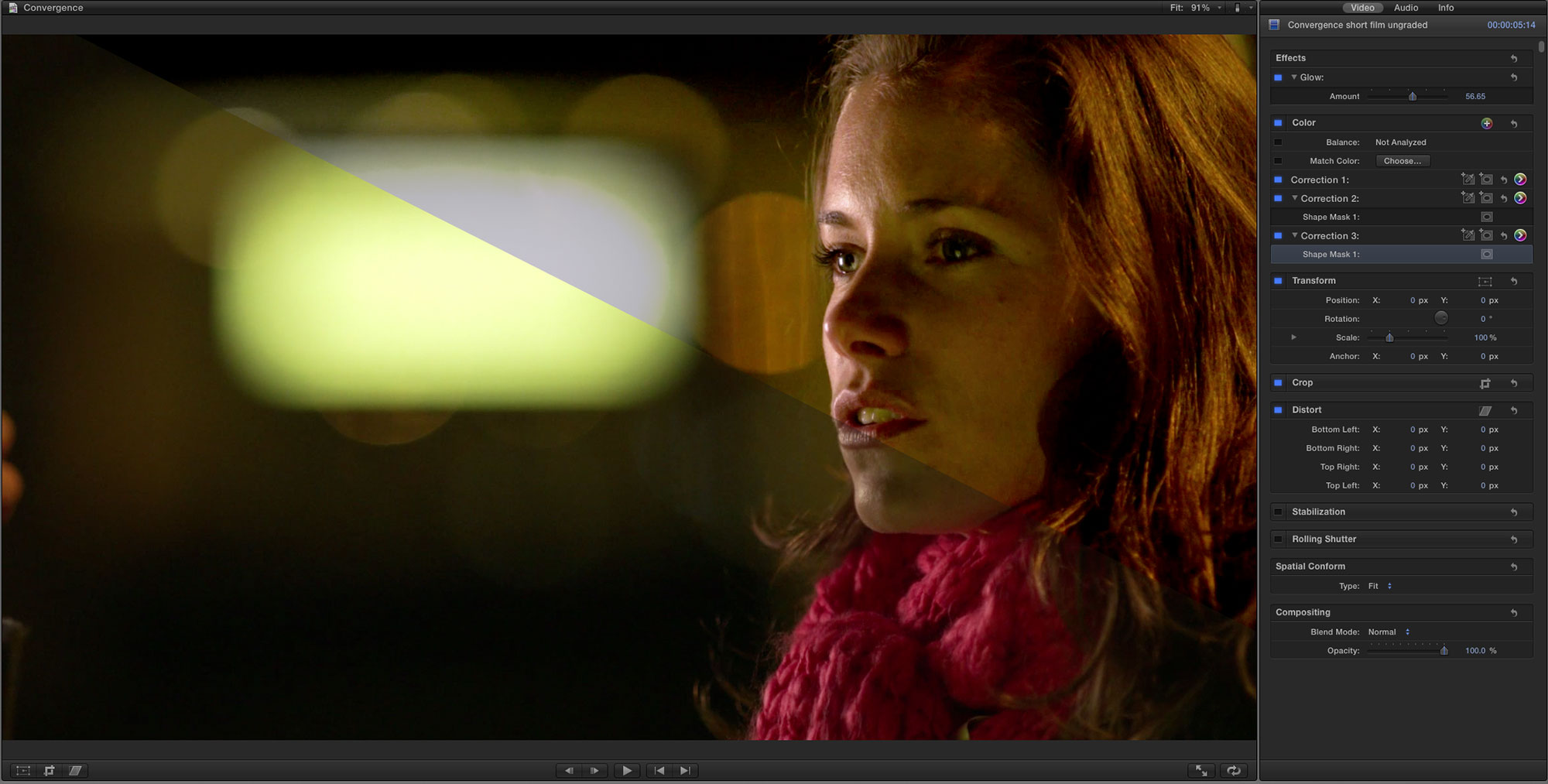
Shot 20

a. Ungraded original   [Click to view]

b. FCP X Glow filter to brighten highlights   [Click to view]

c. Color board 1 – tonal adjustment   [Click to view]

d. Color board 2 – shape mask to isolate and darken bright light in background   [Click to view]

e. Color board 3 – shape mask to isolate area outside of face   [Click to view]

f. Color board 3 – darken area outside of mask for vignette   [Click to view]

Objective – Relight the shot to focus in on the actress. Also to de-emphasize the large light source in the background.

Shot 21

a. Ungraded original   [Click to view]

b. Color board 1 – tonal adjustment   [Click to view]

c. Color board 2 – shape mask to isolate person   [Click to view]

d. Color board 2 – brighten area inside of mask   [Click to view]

e. Color board 3 – HSL key to isolate background lights and make them more yellow   [Click to view]

f. Color board 4 – shape mask to darken edge for vignette   [Click to view]

Objective – Focus attention more on the actor. Change highlight tones in the background.

—————————
When Apple introduced the new FCP X, it came with a newly designed color correction interface. On this page you’ll find complete color grading training for FCP X. I hope that you find these color grading tutorials beneficial in your color grading. Please consider sharing this page by clicking the share options over to the left.

1. Introduction

2. Correction Stage

3. Looks Building

4. Secondary/Isolation

March 20

Friday Check List for This Week 3/16-3/20

Friday Check List For This Week 3/16-3/20

——————————————————-

1) Newscast Project (Was Due Last Friday 3/13)  ____  (45%)

Independent Video Projects  #1                            ____ (45%)


2) Key Terms Test Chapter 18 Field Production      ____ (40%)

3)  Daily Assignments

Monday 3/16   ___ (15%)

Wednesday 3/18  ___ (15%)

*****MAKE UP FRIDAY**********

March 18

College Spotlight- Luzerne County Community College

Luzerne County Community College
1333 South Prospect Street, Nanticoke, Pennsylvania 18634-3899
1-800-377-5222

Overview

  • Public two-year college offering associate degree, certificate, and diploma programs.
  • Founded in 1966 under the sponsorship of the Luzerne County Board of Commissioners and guided by a fifteen member Board of Trustees.
  • Accredited by the Commission on Higher Education of the Middle States Association of Colleges and Schools, 3624 Market Street, Philadelphia, PA 19104-2680, (215)-662-5606.

Enrollment

  • Credit enrollment (Fall 2013): 6,049
    • 46% attend full-time / 54% attend part-time
    • 60% are females / 40% are males
    • 73% live in Luzerne County
    • 58% are enrolled in transfer programs / 42% are enrolled in occupational programs
    • 1,386 individuals enrolled in distance learning/hybrid courses
  • Noncredit enrollment (2013-2014): 5,147
    • Includes Workforce and Community Development Division and Public Safety Training Institute.

Graduates

  • 938 degrees, certificates, and diplomas were awarded to 922 individuals in 2013-2014
  • 29,391 individuals have received associate degrees, certificates, or diplomas since 1967

Employees (2014-2015)

  • 152 full-time faculty
    • 9 month – 106
    • 12 month – 46
  • 2 part-time faculty members (paid hourly; 19 hours or less)
  • 66 administrative staff FT & PT
  • 148 support staff FT & PT
  • 10 security FT & PT

Finances (2014-2015)

  • Operating budget of $41,950,120
  • Income is derived from federal, state, and local governments, student tuition, vending services, and bookstore
  • Student tuition is $118 per semester hour for part-time in-county residents; full-time in-county students pay flat rate of $1,770 per semester

Main Campus

  • The permanent campus of Luzerne County Community College is situated on a 167-acre site in Nanticoke, Pennsylvania. Fifteen buildings make up the College’s permanent facilities. These include eight classroom and instructional facilities, a library, an administration building, a conference center, a campus center, security and printing services, and physical plant services. The value of campus buildings and equipment as of July 1, 2014 exceeds $148,645,093.
  • Upcoming projects through 2015 include building renovations and capital improvement/deferred maintenance projects.

Additional College Centers

  • Berwick
  • Wilkes-Barre Center
  • Hazleton
  • Kulpmont
  • Northumberland

Learning Resources

  • The College has over 1,600 personal computers, 1300 of which are located in 55 academic labs. More than 95% of the College’s classrooms are “smart classrooms” which consist of an instructor PC, overhead projector, and network access. All students have access to College e-mail and network accounts.
  • Library collections include more than 62,855 books, 102 current journal subscriptions, over 2,674 audiovisual items, and over 11,995 items on microform. The Library has 44 online database subscriptions with 15 internet workstations for patrons to search Web-based databases.

Programs of Study

  • 84 occupational programs (includes degree, certificate, and diploma programs)
  • 25 liberal arts/transfer programs
  • 10 credit-free career training programs as well as hundreds of conferences, seminars, workshops, and business/industry customized training either on-campus or throughout the community

Special Programs

  • Weekender degree program (LPN-RN Evening-Weekend Program)
  • Credit for life experience
  • Advanced placement
  • Cooperative education
  • 2+2+2 Program
  • Workforce Investment Act
  • Early College enrollment with 17 school districts
  • Articulation agreements with 41 colleges and universities
  • Custom-designed training programs for regional business and industry
  • Plus50 Initiative
  • Dual Admissions Program (King’s College, Misericordia University, Wilkes University and Temple University)
  • 10 Program-to-Program Agreements with 14 State Universities

Student Support Services

  • Act 101 Program
  • KEYS Program
  • Perkins Program
  • Career services
  • Counseling and advising services
  • Services for students with disabilities
  • Learning support services, including tutoring and skills seminars

Student Activities

  • 41 student clubs and organizations
  • Student Government Association and student leadership opportunities
  • Radio station and TV station
  • 8 intercollegiate athletics teams and intramurals and extramurals

Funding Operating costs are shared among the students, county and the state. This translates roughly into each group being responsible for one-third the total cost.

President Thomas Leary, President

Programs of study:Advertising / Graphic Design
Audio / Video Communications
Computer Graphics / New Media
Journalism and Media Writing
Music Recording Technology
Painting Illustration
Photography
Theatre
Employees within this department:
Edward Ackerman

Denise Evans

James Gavenus

Kevin Jones

A Edward Kuehner

Thomas McHugh

Andrew Petonak

Ronald Reino

Paul Sinclair

Donna Smith

Christopher Vida


Communication Arts

Associate in Applied Science degree in
Audio / Video Communications


Program Mission/Description:
The AAS degree in Audio / Video Communications is designed to provide a solid foundation in the understanding and utilization of audio, video and other new and emerging technology. The extensive theoretical and hands-on experiential learning provides the student with skill sets necessary for an entry level position in radio, television, independent video production, multimedia and internet careers in a variety of private and corporate settings. Credits earned in this program are also transferrable to a 4 year degree.
Goals
This program provides the student the opportunity to:

  • apply general communications principals in audio, video and multimedia productions, and develop program content that entertains, educates and informs a specific target audience.
  • develop competency in the skills required to plan, organize, produce, evaluate and distribute program content in a variety of media forms.
Learning Objectives
The graduate of this program is able to:

  • Articulate the duties and responsibilities of the mass media in today’s society.
  • Plan, implement, and evaluate a video and audio production that appeals to an identified target audience.
  • Effectively utilize multimedia technology in the production and distribution of varied content.
  • Demonstrate the ability to write effective media content in a variety of script formats.
  • Present a professional portfolio documenting production expertise, video/audio editing capability, graphics skills, writing ability, experiences in the field, and use it to showcase to potential employers.
Required Courses
First year – First semester:
Course Code: Course Name: Number of Credits:
COM-101 Basic TV Production 4
COM-107 Introduction to Digital Design Tools 3
ENG-101 English Composition 3
FYE-101 First Year Experience 1
Elective Health and Physical Ed Electives 1
JOR-100 Introduction to Mass Communications 3
Total: 15
First year – Second semester:
Course Code: Course Name: Number of Credits:
COM-102 Electronic Field Production 4
COM-104 Introduction to Multimedia Technology 3
COM-105 Writing for Audio, Video and the Web 3
SPE-125 Fundamentals of Speech 3
Elective Social Science Elective 3
Total: 16
Second year – First semester:
Course Code: Course Name: Number of Credits:
COM-201 Radio Production 4
COM-203 Electronic Journalism 4
COM-204 Mass Media Management and Law 3
Elective Mathematics Elective 3
Elective Science Elective 3
Total: 17
Second year – Second semester:
Course Code: Course Name: Number of Credits:
COM-207
or COM-209
Professional Internship
or Special Project Workshop
6
COM-214 Graphic Production for Digital Media 3
COM-290 Portfolio 1
Elective
Elective
Communications Elective
or Journalism Elective
3
Elective
Elective
Humanities Elective
or History Elective
3
Total: 16
Total Credits for Degree: 64